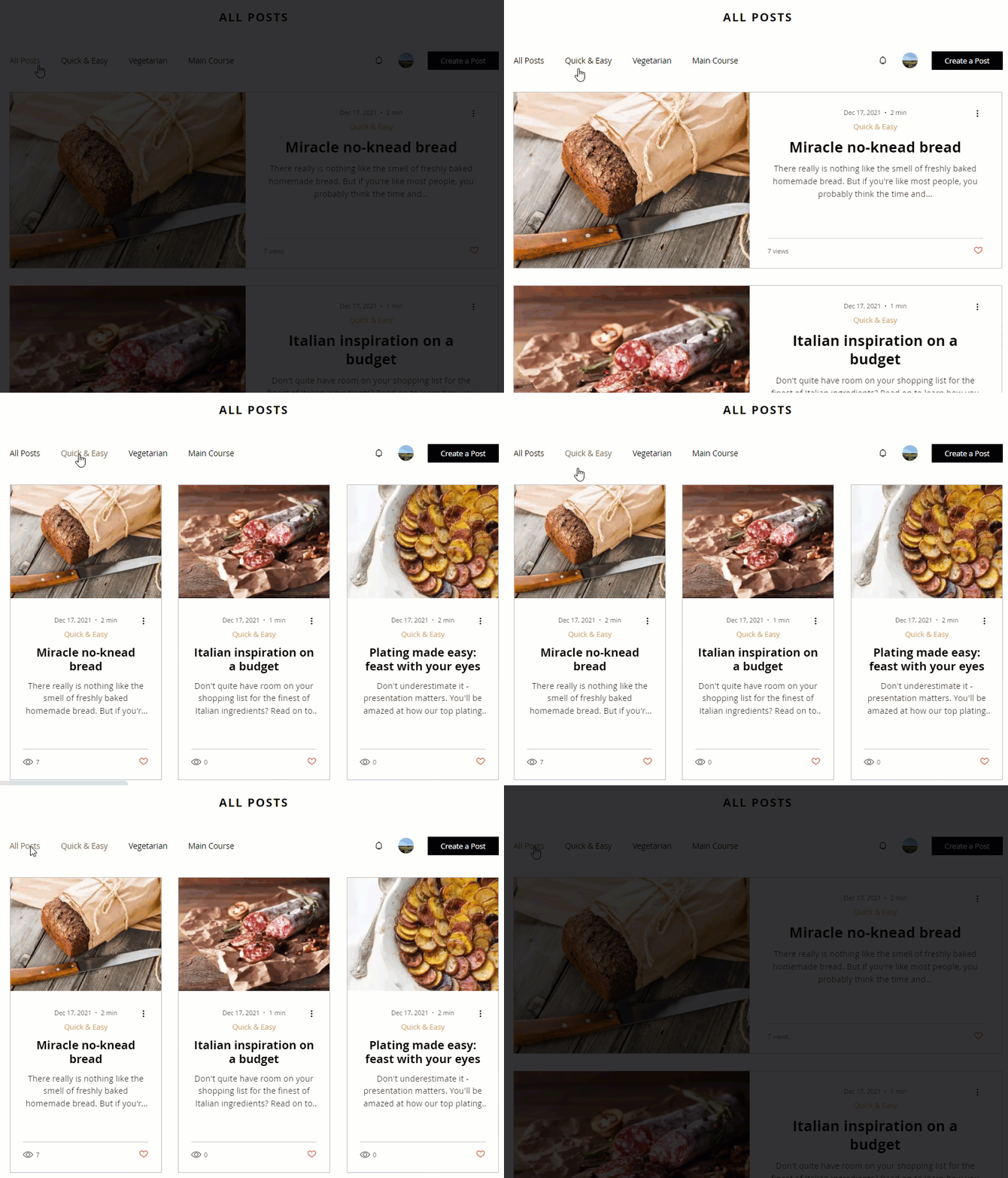
You can customize the layouts of your All Posts feed and category feed in your blog. Choose how your posts are arranged, the size and positioning of your posts and images, and the loading style of your posts to give your blog that perfect look.
Notes:
You can have different layouts for your feeds. For example, you might choose a Side-by-Side style for your All Posts feed and the Editorial layout for your category feed.
When you select a category feed layout, it affects all your categories.
To customize the layouts:
Go to your Blog page:
Click Pages & Menu

on the left side of the editor.
Click Blog Pages.
Click your Blog page.
Click Settings.
Click the Layout tab.
Click either the All Posts Feed tab or Category Feed tab.
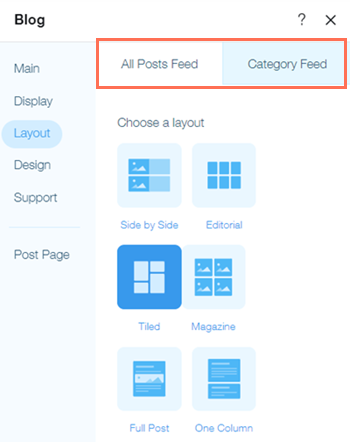
6. Choose a layout from the options available.
Side by Side
Customize the following settings:
Image resizing: Select whether you want your cover image to be cropped or scaled to fit.
Image ratio: Select the shape of your cover image. You can select between width to height ratios of 4:3, 1:1, or 3:4.
Additional image settings: Customize your cover image's alignment relative to your post description and to update your cover image's proportions relative to the post's preview card.
Layout settings: Customize the layout of your post preview cards and the size and spacing of your post's title and description.
Post loading: Choose how many posts are visible on your page and whether posts load as site visitors scroll down or display on separate numbered pages.
Editorial
Customize the following settings:
Image resizing: Select whether you want your cover image to be cropped or scaled to fit.
Image ratio: Select the shape of your cover image. You can select between width to height ratios of 16:9, 4:3, 1:1, 3:4, or 9:16.
Text alignment: Select whether your post description shows on the left, center, or right of the post preview card.
Layout settings: Customize the layout of your post preview cards, how many cards display per row, and the size and spacing of your post's title and description.
Post loading: Choose how many posts are visible on your page and whether posts load as site visitors scroll down or display on separate numbered pages.
Tip: The Editorial layout stretches to the full width of the page. Click the Stretch icon

to customize the width of the element.
Tiled
Customize the following settings:
Text alignment: Select whether your post description shows on the left, center, or right of the post preview card.
Layout Settings: Customize the layout of your post preview cards, how many cards display per row, and the size and spacing of your post's title and description.
Post loading: Choose how many posts are initially visible on your page before your site visitor scrolls down.
Magazine
Customize the following settings:
Image ratio: Select the shape of your cover image. You can select between width to height ratios of 16:9, 4:3, 1:1, 3:4, or 9:16.
Text alignment: Select whether your post description shows on the left, center, or right of the post preview.
Layout settings: Customize the layout of your post preview cards, how many cards display per row, and the size and spacing of your post's title and description.
Post loading: Choose how many posts are visible on your page and whether posts load as site visitors scroll down or display on separate numbered pages.
Tip: The Magazine layout stretches to the full width of the page. Click the Stretch icon
to customize the width of the element.
Full Post
Customize the following settings:
Post loading: Choose how many posts are visible on your page and whether posts load as site visitors scroll down or display on separate numbered pages.
One Column
Customize the following settings:
Text alignment: Select whether your post description shows on the left, center, or right of the post preview.
Layout settings: Customize the layout of your post preview cards, how many cards display per row, and the size and spacing of your post's title and description.
Post loading: Choose how many posts are visible on your page and whether posts load as site visitors scroll down or display on separate numbered pages.
Want to learn more?
Check out the full course in Wix Learn on building your blog. Skip to the second video to learn more about creating and designing your blog.
This article is credited to the Wix team - https://support.wix.com/ and we thank them for that!