Before you begin:
This article is intended for advanced users. Creating advanced automations using the local variable step requires familiarity with customizing your data with a formula field.
Local variables let you create a placeholder for information you use repeatedly in your automation. This gives you the flexibility to manipulate your data and reuse it in conditions or actions.
Instead of adding or calculating the same details over and over, you set up a local variable once and reuse it as many times as necessary. If you ever want to update the variable, you only need to do so in one place and it updates throughout your automation.
View an example of how one site owner sets up an automation with a local variable
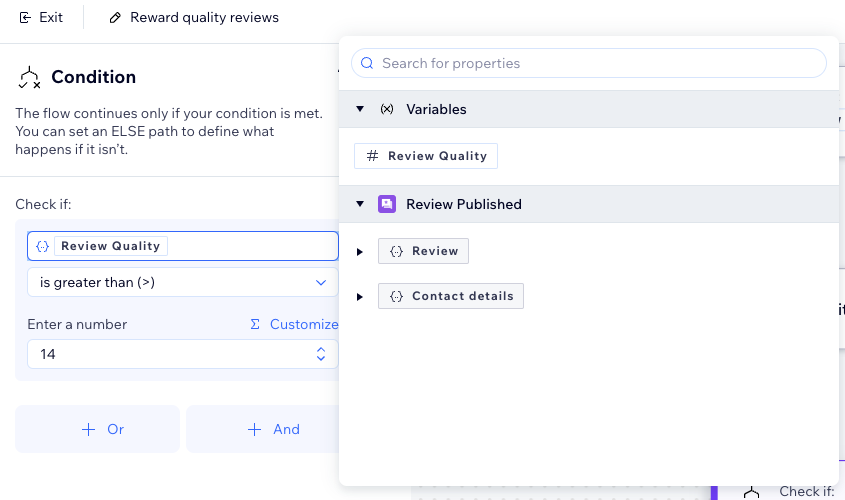
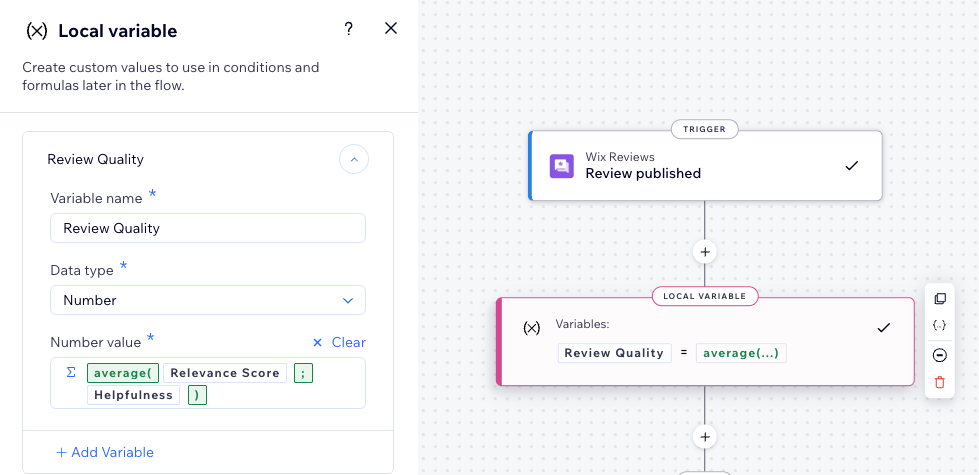
Stella has an online store and wants to reward her customers for writing quality reviews that other customers find helpful one month later.
Rather than manually calculating this score by averaging the scores of quality reviews with helpfulness, Stella sets up an automation that includes a local variable to do this automatically. She is then able to use this variable in her condition to determine which customers to automatically send a coupon.
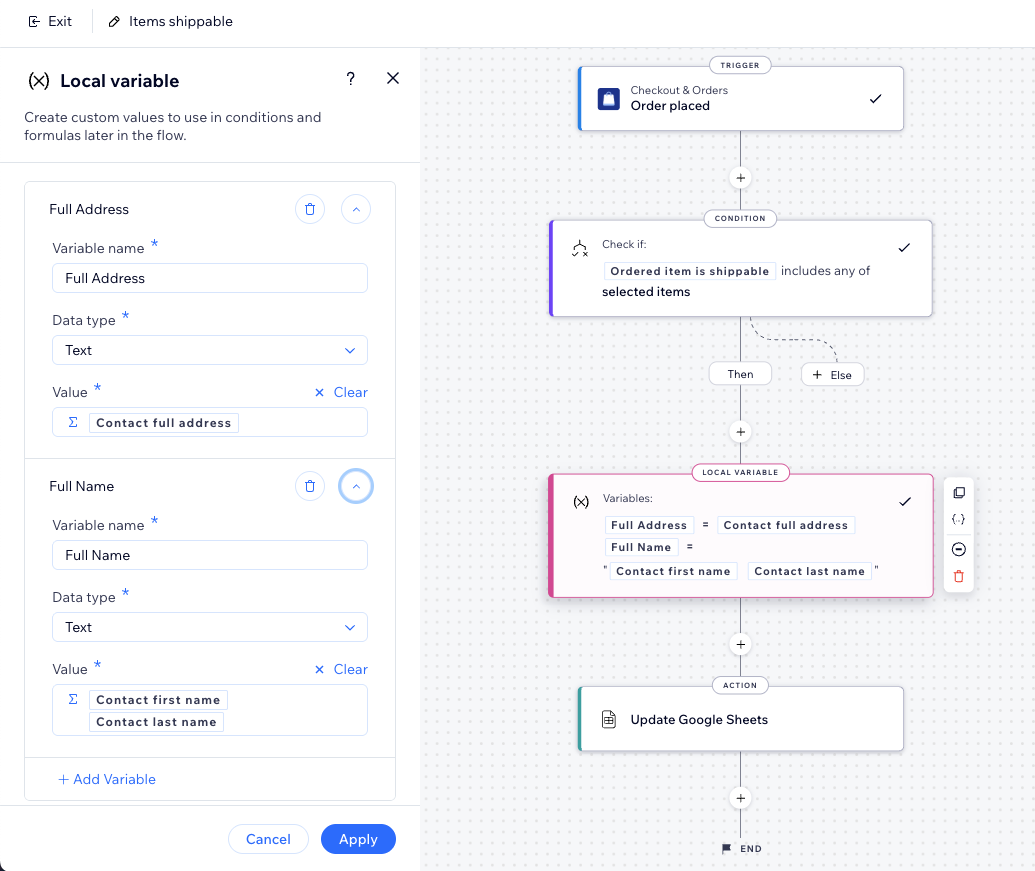
Adding a local variable to your automation
Add a local variable to your automation by adding a new step. To work with variables effectively, make sure to add them before the point in the flow where you plan on using them.
For example, you can add a local variable right after selecting a trigger so it's available to use in all of the steps that follow (e.g. condition, action).
To add a local variable to an automation:
Go to Automations in your site's dashboard.
Click + to add a step.
Click Custom value.
Click Local variable.
Add your variable info:
Variable name: Add an easily identifiable name.
Data type: Select the appropriate data type (e.g. number, text, boolean).
Value: Set the variable's value. You can also click Customize to create a complex calculation made up of properties, functions and values.
(Optional) Click + Add Variable to add another variable.
Click Apply.
Continue building your automation as needed.
FAQs
Click a question below to learn more about using local variables.
What are the benefits of using local variables?
Using local variables in Wix Automations offers several benefits:
Time-saving: Set a variable once and use it across the automation, eliminating the need to update the same value in multiple places.
Precision: Reduce the risk of errors since you only need to update information in one spot.
Consistency: Ensure that the same values are used uniformly throughout the automation.
Efficiency: Simplify complex calculations and conditions by referring to variables instead of recalculating or re-entering data.
Flexibility: Easily manage and change key information, adapting quickly to new requirements or data changes.
How can I update local variables?
Click the Local variable step in the automation builder.
Update the relevant information on the left (name, data type, value).
Click Apply.
Tip: The new variable automatically updates wherever it's used in your automation flow.
Does the location of my local variable matter?
Yes, local variables must be added before the point in the flow where you want to use them. Plan the placement of your variables carefully to ensure they are accessible where needed.
For example, if you want to use a variable in a condition, you must create the variable before adding the condition step. If you add variable after the condition, it will be unavailable when you try to select a property for your condition.
Can I use my local variable in other automations?
No, currently a local variable is only available in the automation that it was set up in.
How can I access all my local variables?
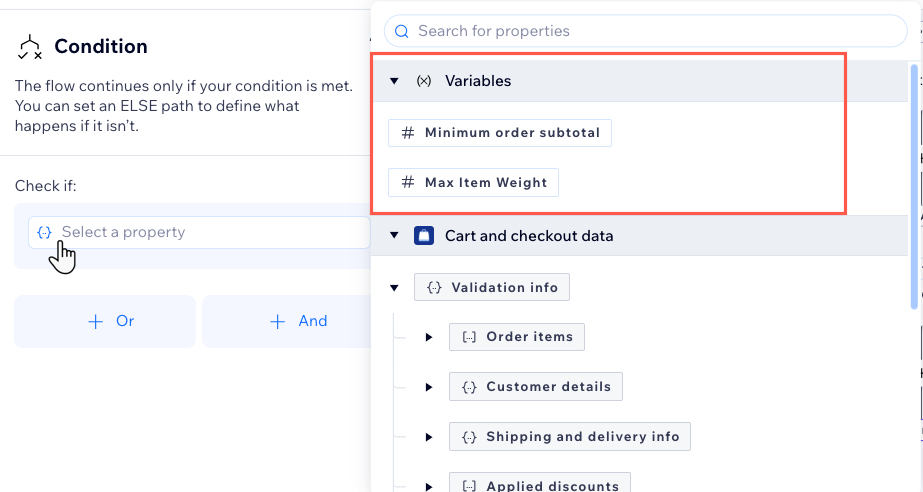
Access your local variables from the property picker. This panel appears when you try to select a property for your condition or access a formula field.
For example, when building a condition, click Select a property to open the property picker (or Customize if it's a formula field). Available variables are listed under the Variables drop-down. If a variable is missing, make sure it appears before the current step in your automation.
Note: The local variables on this list are the ones you've created within the automation you're currently editing.
What happens if I delete a local variable?
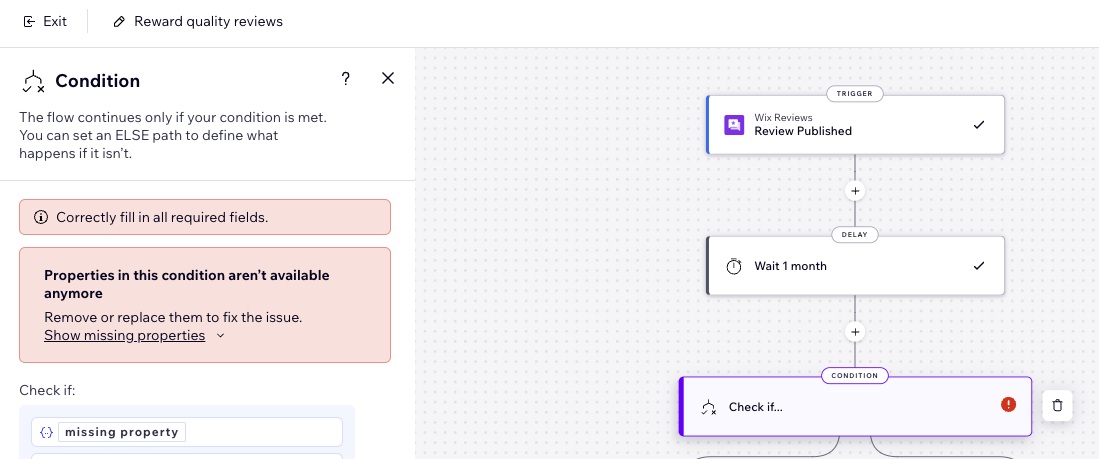
If a local variable is deleted, any node referencing it will show an error. You will need to update it for your automation to run without any issues.
What are some tips for using local variables effectively?
Organize your local variables: Use clear and descriptive names for your variables to make them easily identifiable.
Test thoroughly: Always test your flows after creating or updating variables to ensure they work as expected.
Document your local variables: Keep a record of the variables you create and their purposes to maintain clarity and ease of use.
Leverage local variables for personalization: Use variables to tailor user experiences, such as personalized messages or customized offers based on user data.
This article is credited to the Wix team - https://support.wix.com/ and we thank them for that!