Verifying ownership of your domain on search engines helps to improve your presence in search results. You can verify your site with Google Search Console by adding a meta tag to your Wix site.
Important:
To connect to Google Search Console, you must have an upgraded site and a connected domain. This can be either a domain purchased from Wix or a domain purchased from another domain host.
When you manually verify your site with Google, you don't need to connect your site in your SEO Setup Checklist. If the step is marked as not completed in your checklist, you can ignore it.
Step 1 | Get your meta tag from Google Search Console
First, you need to get a meta tag for your site from your Google Search Console account.
To get your meta tag:
Go to Google Search Console.
Click Start now.
Select the URL Prefix property type and enter your full URL (e.g., https://www.mystunningwebsite.com):
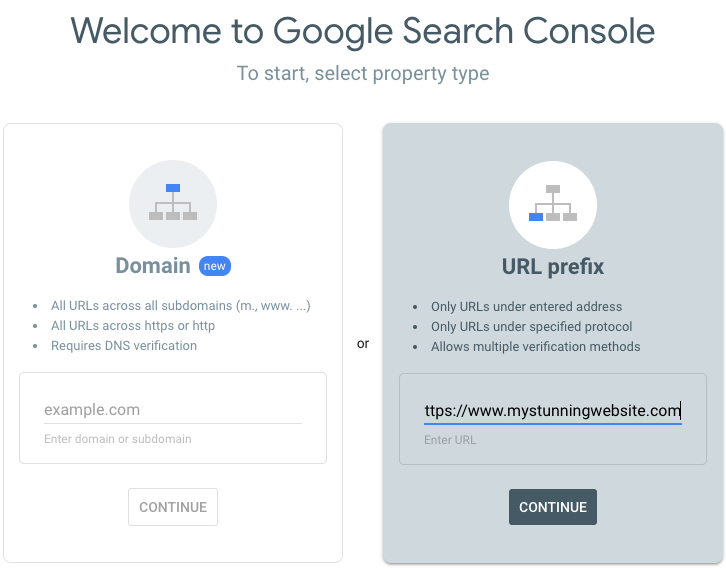
Click Continue.
Click the Expand icon

next to HTML tag.
Copy the meta tag code.
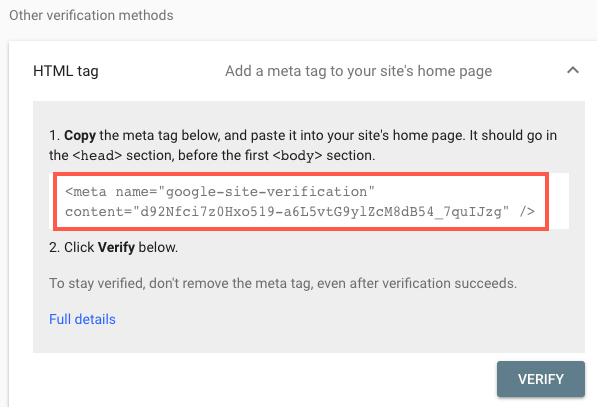
Leave the Google Search Console open.
Important:
Make sure you are verifying the full site URL, including the https://www. For example, https://www.mystunningwebsite.com.
Step 2 | Add your meta tag to your Wix site
Next, you need to add the meta tag from Google Search Console to your Wix site using the Site Verification tool.
To add your meta tag:
In a new tab, go to SEO & GEO in your site's dashboard.
Scroll down to Tools and settings.
Select Site Verification.
Click on Google Search Console to expand.
Enter the meta tag.
Click Save.
Step 3 | Complete the site verification on Google Search Console
The final step is to use Google Search Console to verify the meta tag that you've added to your site.
To verify your site:
Go back to Google Search Console.
Click Verify.
Troubleshooting Google Search Console verification issues
If you're experiencing issues verifying your site with Google Search Console, try the steps below:
Check your email address
If you have more than one Google account, make sure the correct email is listed when you sign in. If it isn't, log out of all your Google accounts and then sign in with the correct Google account.
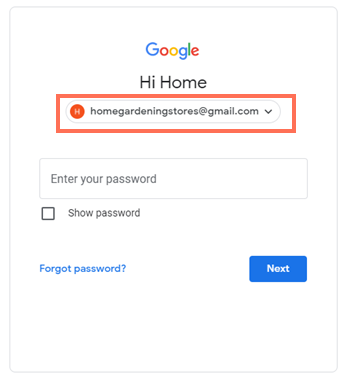
If you use a university or educational email address which includes ".edu", your university may block access to certain services. You can change the email address of your Wix account and then submit a new index request using the SEO Setup Checklist. Learn How
Reconnect your site to Google Search Console
Google uses OAuth authorization to verify your account when you connect to Google Search Console. Sometimes you need to refresh this authorization for it to work correctly. For example, if you change the password of your Google account, the previous authorization won't work.
If you see an error that says Wix has lost connection to Google Search Console, click Reconnect Now to re-authorize your account.
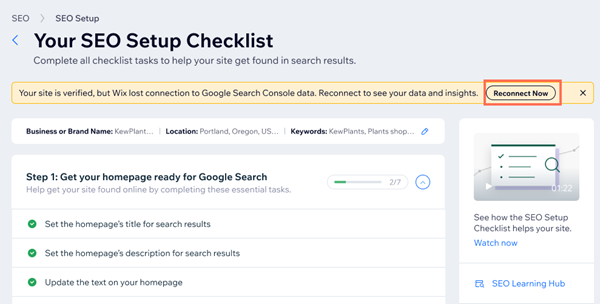
Make sure that the site is published
Search engines can only index pages that you have published. Any pages that you add after the last time you published your site won't appear in search results.
Make sure that your site is published before you try to verify it with Google Search Console.
Check that search engines can index your site
You can choose whether or not to allow search engines to index your site in your SEO Settings. It's important to let search engines index your site if you want to verify your site with Google Search Console.
To let search engines index your site:
Go to SEO & GEO in your site's dashboard.
Scroll down to Tools and settings.
Click SEO Settings.
Make sure the Let search engines index your site toggle is enabled.
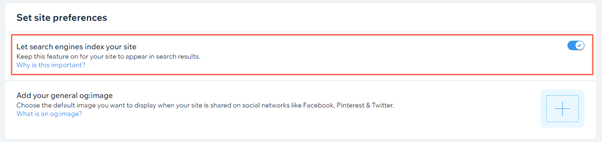
Note: The waiting period for your site to be indexed is determined by the search engines themselves and is the same for all websites (not just Wix sites).
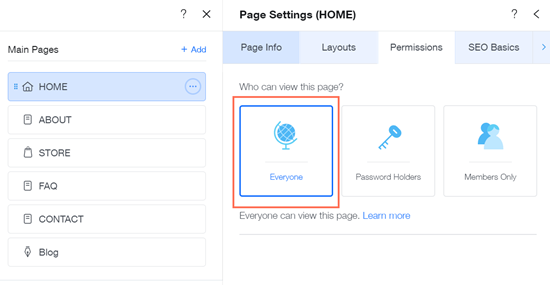
Make sure your homepage is not password protected
If your site's homepage access is for members only or password protected, search engine bots won't be able to crawl and index it. You'll need to remove the password protection from your homepage before you can verify your site on Google Search Console.
Learn more about removing password protection.
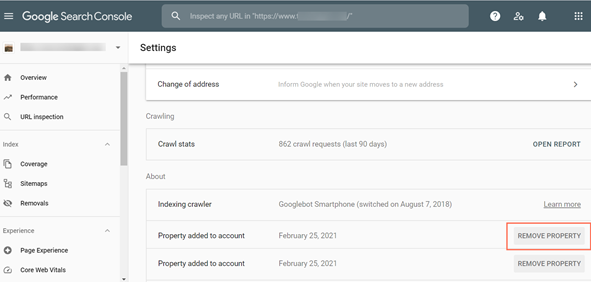
Check your Google Search Console account properties
You can have up to 1000 properties in your Google Search Console account. If you have more than 1000 properties, you'll need to remove some properties in your Google Search Console settings and then try verifying your site again.
Clear your browser's cache and cookies
Websites often create files known as cookies when you visit them. Cookies contain user-specific information such as authentication data and are stored by your web browser.
Your browser also stores (or "caches") data about each website you visit to speed up loading. Over time, your browser's cached data can differ from the actual live webpages, potentially causing issues.
If you're having issues connecting your site to Google, you can try clearing Wix cookies from your browser and clearing your browser cache.
Still not working?
What information should I include if I need to reach out for assistance?
For us to best assist you, it helps to have the following information ready:
The name or URL of your Wix site
The name and version of the web browser you're using
The name and version of your computer's operating system
A description of the steps you've taken so that we can recreate the issue on our end
A screenshot of the issue
This article is credited to the Wix team - https://support.wix.com/ and we thank them for that!