Find strong keywords to help your site rank higher in search results using keyword research tools. These tools integrate with third party providers to compare the performance of your selected keywords as well as suggest more options. You can also use this tool to optimize keywords in the SEO Checklist and SEO Assistant.
How the keyword research tool works
Keywords (also called search phrases) are words that a user enters into a search engine to find the content they want. The search engine matches the user with content that it thinks is relevant to their keywords. Using keywords effectively on your site's pages can help improve your site's ranking in search results.
Want to learn more about keywords?
Go to the SEO Learning Hub to check out this video on choosing the right keywords.
From your SEO Setup Checklist, first choose your preferred provider. Once you've connected a provider as well as selected a keyword and region, the chosen provider analyzes a keyword's popularity and compares it against its database. Then it creates a report with a table of options related to your keyword.
The table includes information about these keyword options such as their popularity, the trend of their popularity, and the difficulty to rank for them. You can use this report to help identify the best keywords to target for your site's search engine optimization (SEO).
When you've found the keywords you want to use, you can select them and add them.
Read more information about each aspect of the report below.
Keyword options
This is a list of search terms that are related to the keyword you searched for. The number of options you see depends on the popularity of your keyword. Keyword options are listed based on search volume from highest to lowest.
Search volume
This is the average number of times that users search for a certain keyword per month. You can use this number to get an idea of the potential traffic that you can bring to your site if it ranks for this keyword. However, keywords that have high volume are also likely to be more competitive to rank for.
Trend
The Trend column shows you a graphical representation of the change in volume for a certain keyword over a 12 month period. You can use this graphic to see if the keyword is increasing or decreasing in popularity.
Difficulty to rank
This column gives you an indication of how competitive a keyword is and how difficult it is to rank for. The difficulty to rank for a keyword depends a range of factors including the competitors for it, the quality of content they create, the backlinks each competing page has, and the intent of the user.
There are three levels of difficulty: Easy, Medium, and Hard. These levels give an idea of the effort required to rank on the first page of search results for a keyword.
Searcher intent
Intent gives you an indication of the reason why users search for a certain keyword. Searcher intent is divided into four categories:
Informational: Looking for answers to a specific question. For example, "How to improve my site's SEO".
Navigational: Trying to find a specific page, site, or physical location.
Commercial: Looking for information about specific brands or services, usually with an intent to purchase something in the future.
Transactional: The user wants to complete an action such as purchase something. For example, "buy new camera".
You can use intent to help decide how you need to write the content of your page. For example, if someone's asking a question, you can provide a direct answer on your site.
Researching the questions people ask AI assistants
People often type a full question instead of a short keyword, especially when using LLMs.
To add questions to your research:
Take a keyword you already target, then write out the questions someone would ask about it.
Note the questions customers already send you by email or chat.
Run each question through your keyword research tool.
Tip:
The AI Marketing Agent can also suggest FAQ questions to optimize as part of your SEO plan.
Finding keywords for your site's pages
You can use your chosen keyword research tool to find keywords for your site's pages in a few places: through the SEO Setup Checklist in your site's dashboard, with the SEO Assistant, or with the AI Marketing Agent.
SEO Checklist
You can select a maximum of 5 keywords for your SEO checklist. You must add at least 1 keyword.
Note: If you are using the SEO Assistant with Wix Blog post pages, you can only select 1 keyword.
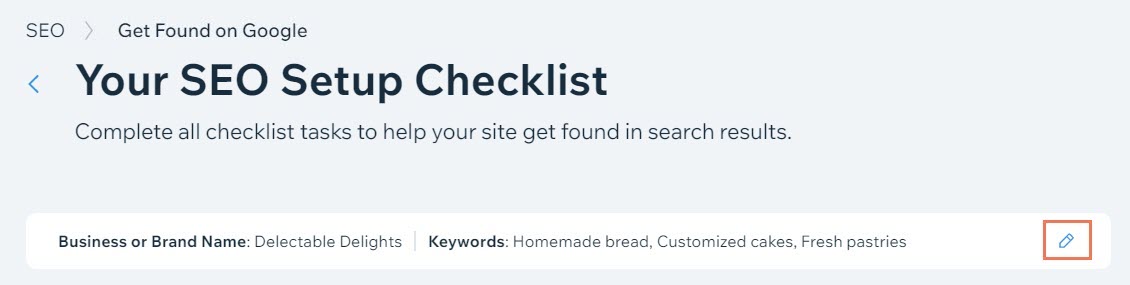
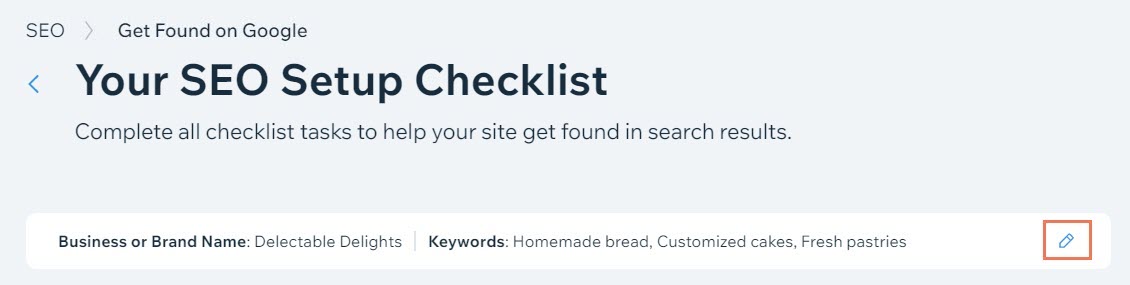
Go to the SEO Setup Checklist in your site's dashboard.
Click the Edit icon

next to Keywords at the top of the page.
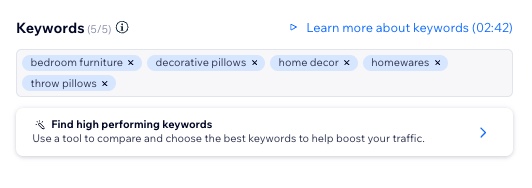
Click Find high performing keywords.
Choose your keyword provider from the list and add it to your site (log in using your existing credentials or register for an account).
Once your provider is connected, enter a keyword in the Keyword field. Your existing keywords appear in a drop-down or you can enter a new keyword.
(Optional) Select a country to search in from the drop-down.
Click Analyze.
Check the box under Selected next to any keywords you want to use for your checklist.
Click Apply.
Click Save.
Note:
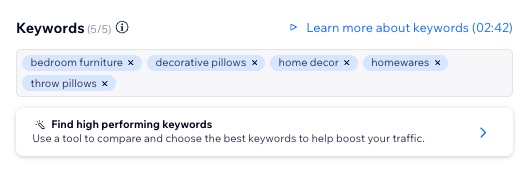
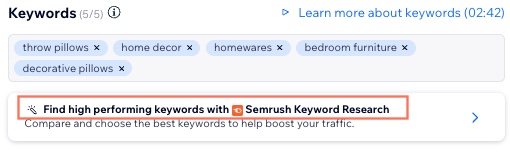
Once you have connected a keyword research provider, you will see Find high performing keywords with [your chosen provider] under Keywords. Click this option to open the keyword research tool.
SEO Assistant
Note: The SEO Assistant is currently only available with Wix Blog post pages.
Go to Blog in your site's dashboard.
Select Posts in the sidebar, or click Manage Posts under Track your latest posts.
Click Edit next to the post you want to get keyword ideas for.
Select SEO on the left panel.
In the Assistant tab, click Get keyword ideas under Focus keyword.
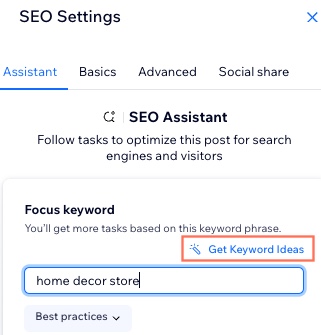
Choose your keyword provider from the list and add it to your site (log in using your existing credentials or register for an account).
Once your provider is connected, enter a keyword in the Keyword field.
Note: You can only add one focus keyword in the SEO Assistant.
Click Apply.
Click Save Changes.
Note:
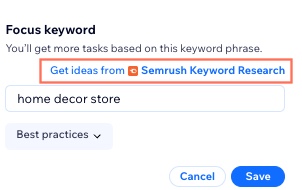
Once you have connected a keyword research provider, you will see Get ideas from [your chosen provider] under Focus keyword. (e.g. Get ideas from Semrush Keyword Research). Click this option to open the keyword research tool.
Upgrading or disconnecting your chosen provider
You can upgrade your connected provider or disconnect it from the SEO Setup Checklist.
To upgrade or disconnect your chosen provider:
Go to the SEO Setup Checklist in your site's dashboard.
Click the Edit icon
next to Keywords.
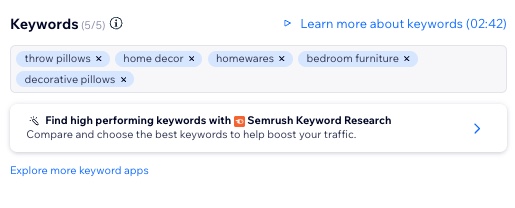
Click Find high performing keywords with [your connected provider] (e.g. Find high performing keywords with Semrush Keyword Research).
Tip: You can also click Explore more keyword apps to view all the keyword research providers and connect a different one.
Click App Settings at the bottom next to your connected provider (e.g. Powered by Semrush Keyword Research).
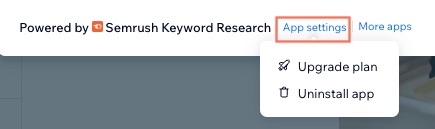
Select the action that you want to do:
Upgrade plan: This opens a new tab with upgrade options for your site.
Uninstall app: This disconnects your chosen provider from your SEO Checklist.
Important:
Disconnecting from your provider removes the integration from your site. You also lose any previous searches that you have done.
FAQs
Click a question below to learn more about using keyword research tools to optimize your site's SEO.
Can I use more than one keyword provider?
You can only connect one keyword provider at a time to your SEO Setup Checklist or SEO Assistant. If you want to switch providers, you can disconnect the current one and then connect a different provider.
How many keyword searches can I do for free with Semrush?
If you have integrated with Semrush, you can do 10 keyword searches per 24 hours. After 10 searches, you need to wait 24 hours or upgrade your account.
How often should I update my keywords?
Keyword optimization is an ongoing process of refinement. Regularly updating your keywords can help you stay competitive. Aim to review and update your keywords at least every few months or whenever you notice a significant change in search trends or your site's performance.
What should I do if my keywords are too competitive?
If your keywords are highly competitive, consider using location-based or branded keywords. These are more specific phrases that may have lower search volumes but are easier to rank for. They can also attract more targeted traffic to your site.
Do I still need keywords if I target questions?
Yes. The two work together — keywords bring people to your page, and questions give them the answer once they arrive.
Can I use the same keywords for multiple pages?
Yes, but it's better to use unique keywords for different pages to avoid keyword cannibalization. This is when multiple pages on your site compete for the same keyword, which can weaken your SEO efforts.
What is keyword stuffing and why should I avoid it?
Keyword stuffing is the practice of overloading a webpage with keywords in an attempt to manipulate search rankings. It can lead to a poor user experience and may result in penalties from search engines. Focus on creating high-quality, relevant content instead.
This article is credited to the Wix team - https://support.wix.com/ and we thank them for that!