The Instagram Feed app by Wix is a great way to connect your site to your Instagram account. Display your posts and Instagram Videos in a customizable gallery on your site.
If you are experiencing problems with your Instagram Feed on Wix this guide will help you identify and resolve common problems with the Instagram Feed app.
I see an error that says '400 session invalid'
If you see this error on your screen, follow the steps below to resolve it:
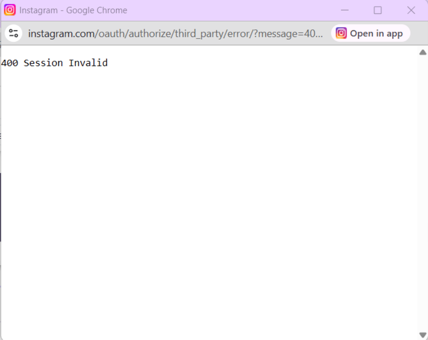
Log in to the correct account at instagram.com.
Go to the Instagram Accounts Center.
Click Add accounts under Profiles and add a Facebook account (you can remove it later).
Click the Instagram Feed app in your editor.
Reconnect your Instagram account to the Instagram Feed app.
I see an error that says 'Your activity off Meta is turned off'
If you see this error on your screen, follow the steps below to resolve it:
Log in to the correct account at instagram.com.
Go to the Instagram Accounts Center.
Click Your information and permissions.
Click Your activity off Meta technologies.
Click Manage future activity.
Click Connect future activity.
I see an error that says "Looks like you've changed your password"
If you see this error in your editor, it means that your Instagram Feed app has disconnected from your Instagram account. The most common reasons for this are:
You've changed your Instagram account password
Facebook made some internal updates or changes
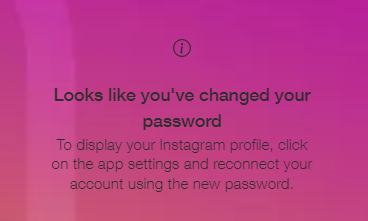
To fix this issue, you need to disconnect your Instagram Feed app and then reconnect it.
Click the Instagram Feed app in your editor.
Click Account Settings.
Click Disconnect at the bottom of the Account Settings panel.
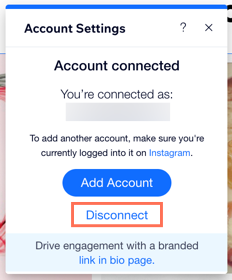
Click Connect.
Follow the instructions in the pop-up to complete the connection process.
I don't see the correct content in my Instagram feed
If you're not seeing the correct content in your feed, go to your Instagram account and make sure that you're signed in to the correct account.
If you're not signed in to the correct account, follow the steps below.
Sign out of the incorrect account.
Sign in to the correct account.
Go back to your editor.
Select the Instagram Feed app.
Click Account Settings.
Click Disconnect at the bottom of the panel.
Click Connect.
Click Allow.
My Instagram account was disconnected from the Instagram Feed app
Your account may get disconnected if there is a connection issue with Instagram, or if you recently changed your Instagram password. Follow the steps below to reconnect your account.
Select the Instagram Feed app in your editor.
Click Account Settings.
Click Connect.
Follow the instructions in the pop-up to complete the connection process.
Why is my Instagram feed display missing some common features?
We are aware that some features in the Instagram app are missing. This is due to a recent API change on Instagram's end.
The following features will not appear on the app:
Header
Likes
Comments
Like Count
Comment Count
Verified badge/tick
I accidentally deleted the Instagram Feed widget. How do I restore it?
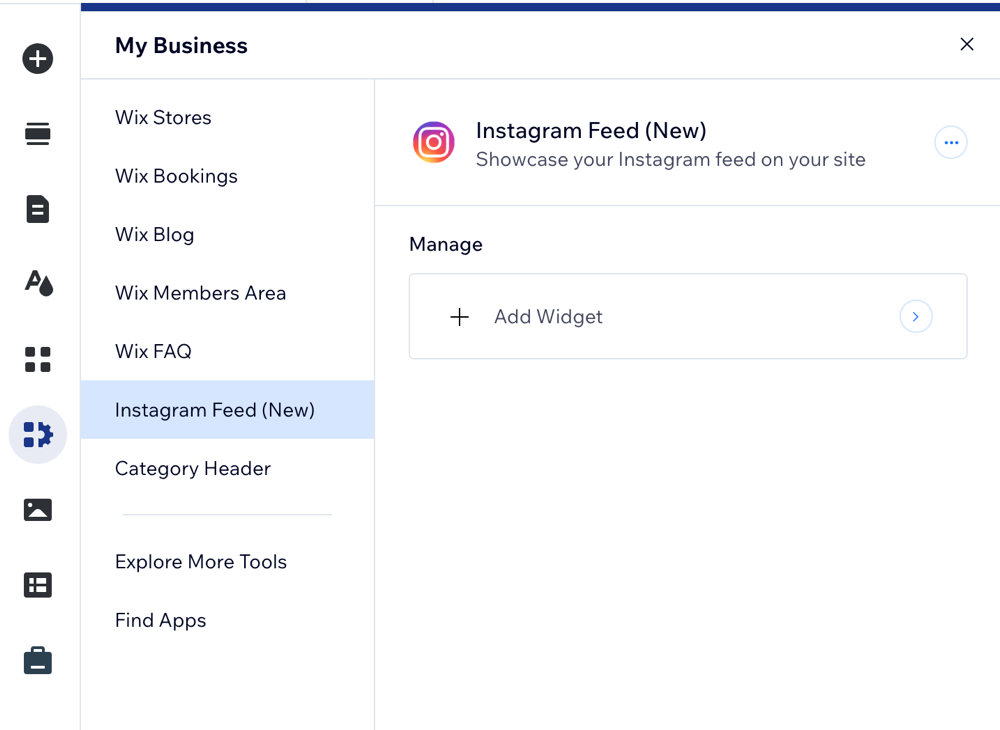
In your editor, go to the My Business tab on the left.
Click Instagram Feed (New).
Click Add Widget.
What information should I include if I need to reach out for assistance?
For us to best assist you, it helps to have the following information ready:
The name or URL of your Wix site
The name and version of the web browser you're using
The name and version of your computer’s operating system
A description of the steps you've taken and what happened
A screenshot of the issue
A screenshot of your console view (see below for steps)
How do I take a screenshot of my console view?
Open an incognito window in Google Chrome (Ctrl + Shift + N).
Sign in to Wix and open your editor.
Go to the area where you noticed the issue and try to repeat the steps.
Press Ctrl + Shift + J (PC) or Cmd + Option + J (Mac) to open the Console.
Tip: If the shortcut doesn’t work, right-click the page and select Inspect.
Click the Console tab at the top, then press F5 to refresh the page.
Take a screenshot of this tab.
This article is credited to the Wix team - https://support.wix.com/ and we thank them for that!