Set the screen size you're most comfortable working with, for each of the page's breakpoints. As every breakpoint represents a range of screen widths, you can choose a default size that always stays the same.
This ensures a consistent design experience, no matter where you're logging in from.
Tip:
You can set an editing size for global sections as well – it automatically applies to every page where the section appears.
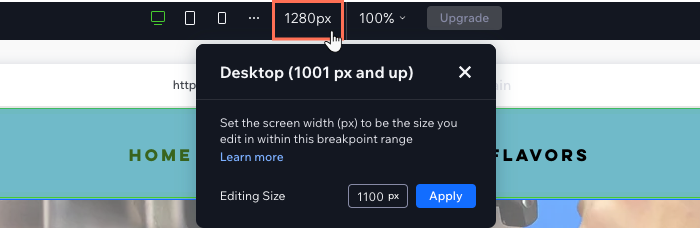
To set your editing size:
Go to the relevant page and breakpoint in the editor.
Click the current editing size at the top.
Enter the new value next to Editing Size.
Click Apply.
What's next?
The canvas instantly changes to the size you set. You can change the editing size again at any time.
This article is credited to the Wix team - https://support.wix.com/ and we thank them for that!