Enhance user engagement effortlessly with text marquee—a running text element that instantly grabs attention, showcases content dynamically, and requires no coding.

Good to know:
The text and the design settings you choose automatically apply to all breakpoints.
Visitors can pause / play the effect on the live site by clicking the text. This option is automatically enabled, and cannot be switched off.
Adding text marquee
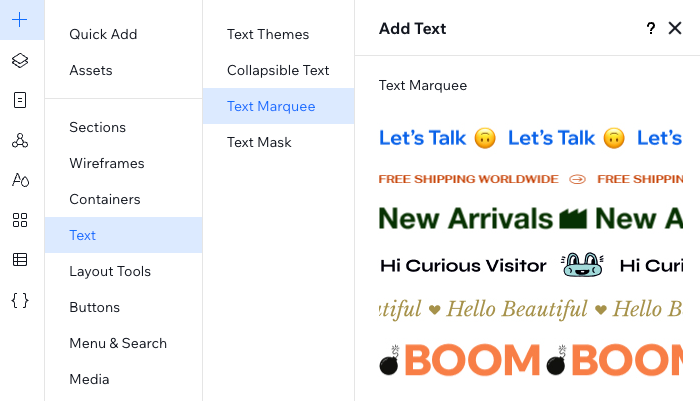
Head over to the Add Elements panel to add a new text marquee element to your client's site. After selecting a design, enter your text.
Note:
You can enter up to 450 characters.
To add text marquee:
Click Add Elements

on the left side of the editor.
Click Text.
Click Text Marquee.
Drag a design you like onto your page.
Enter your text:
Click Change Text.
Enter your text under Add your own text.
Tip:
You can add emojis to your marquee text using the relevant keyboard shortcut:
PC: Windows logo key + .
Mac: Control + Command + Space
Designing the text marquee element
Customize the way the text marquee looks and moves. Change the text formatting, capitalization and spacing to meet your needs. Fine-tune it even more by adjusting the separator icon, speed and direction.
Tip:
Click the Stretch icon

on the element to make it full width.
To design the text marquee element:
Select the relevant text marquee element.
Click the Open Inspector icon

at the top right of the editor.

Customize your text marquee using the available options under Design:
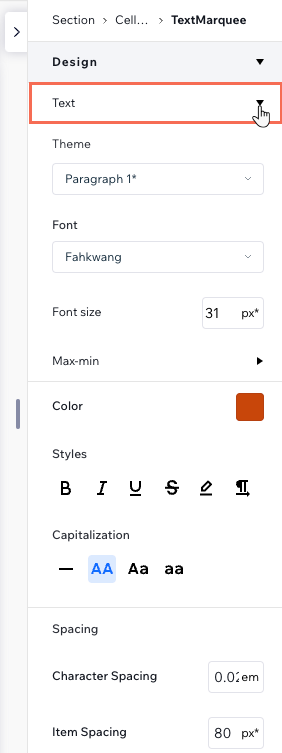
Text
Change the theme, font, size, color and formatting (e.g. bold, italics).
Adjust the capitalization to your liking (e.g. uppercase, title case).
Adjust the spacing between characters, as well as the spacing between the text and the separator icon.
Change the element's heading tag (e.g. P, Div, Blockquote, H2, etc).
Accessibility tip:
If this text marquee element is purely decorative, meaning it does not include important information for screen readers, select the checkbox next to Decorative. This hides the element from screen readers and changes the heading tag to 'Div'.
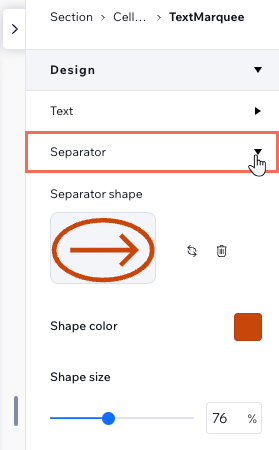
Separator
Click the Replace icon

to change the shape. You can choose from many different designs in the Media Manager, or upload your own SVG.
Click the Remove icon

to delete the separator.
Adjust the Shape color and Shape size.
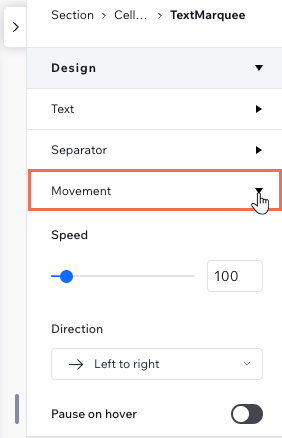
Movement
Speed: Drag theslider to make the text move faster or slower.
Direction: Make the text move from left to right or right to left.
Pause on hover: Enable the toggle to make the text stop moving when visitors hover over it.
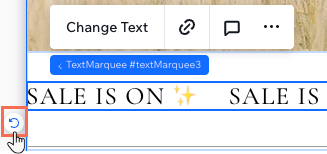
Tip: You can rotate the element so the text moves vertically.
This article is credited to the Wix team - https://support.wix.com/ and we thank them for that!