A repeater is a list of items that have the same design and layout, but different content in each. It's a fast and easy way to display your content, including content from the site's CMS (Content Management System).
In the Studio Editor, repeaters are arranged in a responsive flex layout, making each item look great on every screen size.
Go to our Wix Studio Academy to check out additional Wix Studio webinars, tutorials, and courses.
Adding a repeater
We have loads of pre-designed repeaters for you to add and customize to your needs. Some repeaters contain images, some are more of a "list" style with emphasis on text.
After adding a repeater you like, start working on the content. When you add an element to a repeater item, it's automatically added to the other items to keep the design consistent. Having said that, you can still customize the individual elements inside each item (e.g. text, images).
To add a repeater:
Click Add Elements

on the left side of the editor.
Click Layout Tools.
Click Repeaters.
Drag a repeater onto the page.
Tip:
Removing an element from one repeater item deletes it from all other items.
Managing repeater items
You can easily duplicate, rename, reorder and delete repeater items from the Inspector panel.
To manage repeater items:
Select the relevant repeater.
Click the Open Inspector icon

at the top right of the editor.

(In the Inspector) Click Manage next to the number of items.
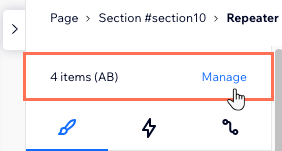
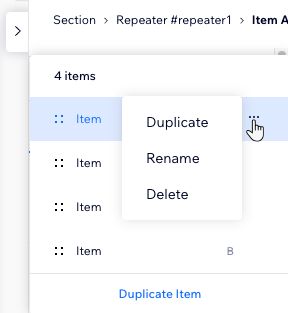
Choose how you want to manage your repeater items:
Duplicate an item: Select an item, then click Duplicate Item at the bottom.
Delete an item: Click the More Actions icon

next to the item, then click Delete.
Rename an item: Click the More Actions icon
next to the item, then click Rename.
Tip: Renaming one item automatically renames the other items in this repeater.
Reorder items: Hold the Reorder icon

next to an item and drag it to a new position.
Designing a repeater
Customize the repeater's design to make it match your client's site. You can change the background color of the items, add borders, shadow, or an interesting cursor that appears when visitors hover over the repeater.
Tip:
Make your repeater engaging and noticeable by adding animations. You can also make your repeater items stick to the top and / or bottom of the screen.
To design a repeater:
Select a repeater item.
Click the Open Inspector icon
at the top right of the editor.
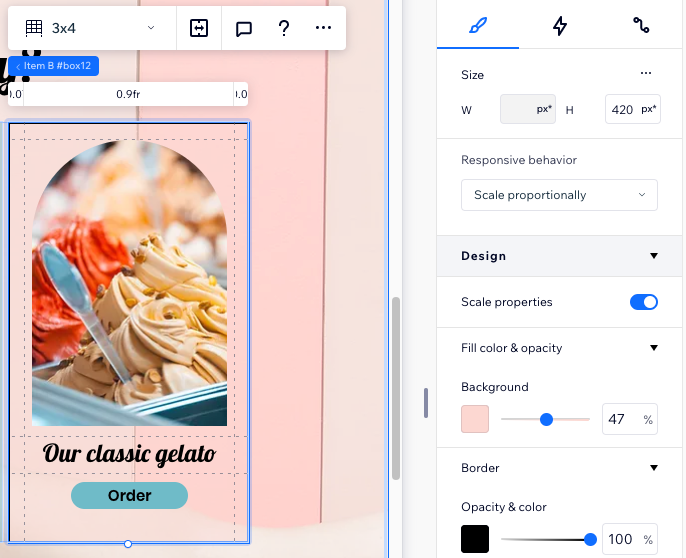
Use the available options under Design to customize your repeater:
Change the fill color and opacity of all items.
Add a border and shadow to make the items stand out.
Make the item corners rectangular or round.
Add a cool cursor to appear when visitors hover over the repeater.
Setting an AB design pattern for repeater items
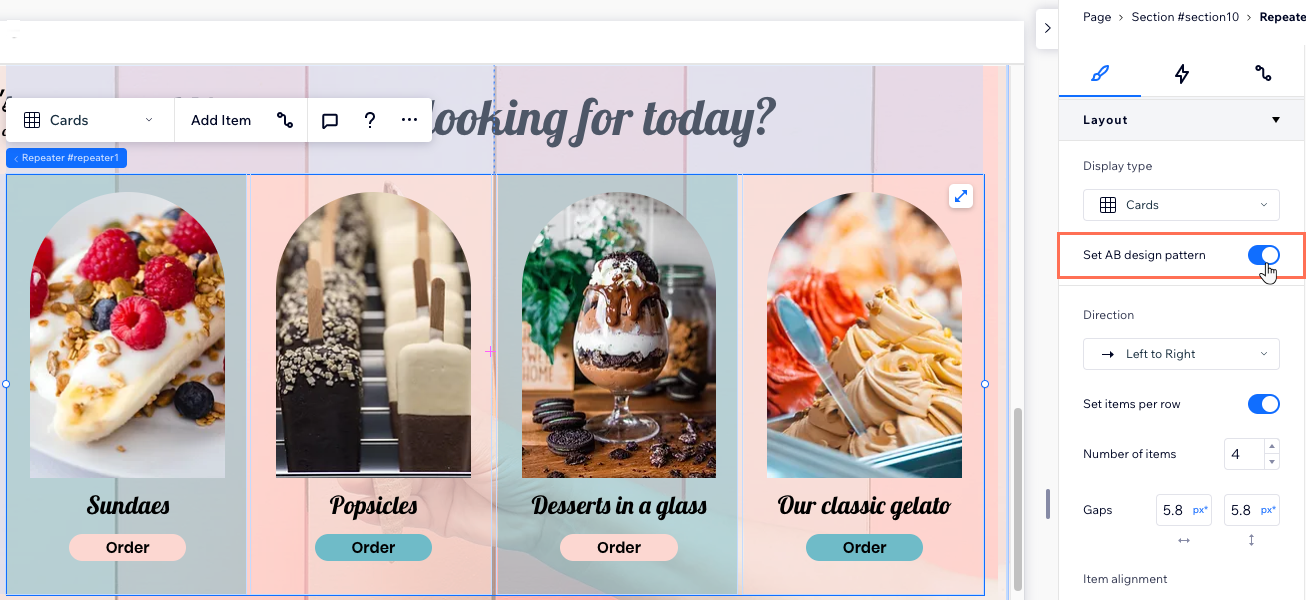
Split your repeater items into 2 groups to create a more elaborate design. The AB pattern lets you create two versions of the same design, with different styles and animations.
Once you enable the AB pattern, your repeater items divide into groups A and B. You can see which items belong to each group in the editor. When designing any of the A or B items, the other items in the group change automatically to match.
To set an AB design pattern for repeater items:
Select the relevant repeater.
Click the Open Inspector icon
at the top right of the editor.
Scroll down to Layout.
Enable the Set AB design pattern toggle.
Design items A and B:
Click on item A or B in your repeater.
Tip: It can be any item from the relevant group.
(In the Inspector) Choose how you want to customize this group of items:
Choose a design preset from the Design section.
Change the items' Fill color & opacity.
Add an animation from the Interactions tab

(Note: Only Hover and Click interactions are available for repeater items with AB patterns).
Apply a custom cursor from the Cursor section.
Repeat steps a-b for the other group of items.
Changing the repeater layout
Set how repeater items are rearranged when the screen size changes. Depending on the chosen display type (i.e. Cards, List, Slider, Grid Cells), you can customize the margins, alignment, directionality and other settings.
Working with breakpoints:
You can have a different layout for your repeater for each breakpoint.
Lists and sliders are commonly used on smaller screen sizes such as tablets and mobile devices.
To further customize the layout of a repeater:
Select the relevant repeater.
Click the Open Inspector icon
at the top right of the editor.
Scroll down to Layout.
Customize the repeater's layout based on the selected display type:
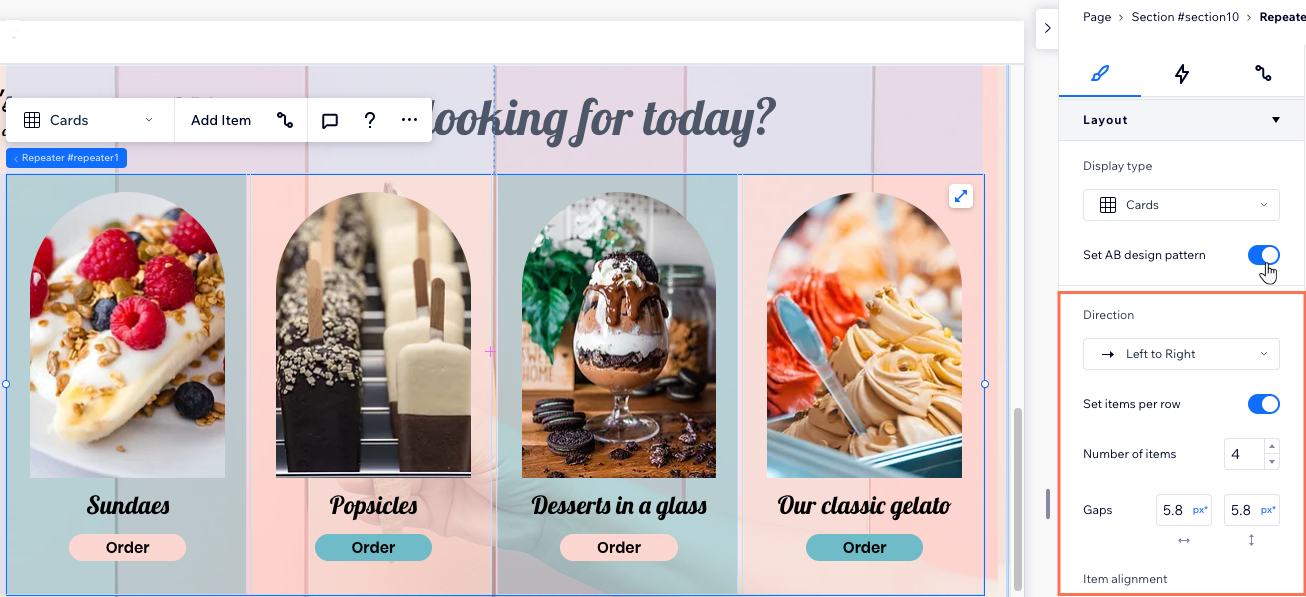
Cards: Layout options
Direction: Select the direction of the items in the repeater - from left to right or right to left.
Gaps: Enter a value (in px*) for the vertical and horizontal spaces between the repeater items.
Set items per row: Enable this toggle to automatically set the amount of items per row, when there isn't enough space on the screen.
Number of items: Enter the number of repeater items that each row should display.
Item alignment: Set the position of your items.
List: Layout options
Gaps: Enter a value (in px*) for the vertical space between the repeater items.
Slider: Layout options
Direction: Display your items on a slider that goes from left to right or from top to bottom.
Gaps: Enter a value (in px*) for the vertical space between the repeater items.
Note: The available options (horizontal or vertical) depend on the slider direction you choose.
Scroll snap align: When scrolling through the slides of your repeater, it "snaps" to each item (slide) so visitors don't miss it.
Show scrollbar: Show or hide a scrollbar for your visitors to scroll through the items.
Grid Cells: Layout options
Direction: Select the direction of the items in the repeater - from left to right or right to left.
Gaps: Enter a value (in px*) for the vertical and horizontal spaces between the repeater items.
Column min width: Set the minimum width of each column (i.e. repeater item).
Rows min height: Set the minimum height of each row of repeater items.
Keep rows equal: Enable this toggle to ensure the rows are all equal in height.
When there's a single row: Decide what happens when there aren't enough items to fill the grid row.
Stretch columns to fill row: The existing columns stretch to fill the available space in the row.
Keep empty columns: The existing columns stay the same size. More columns are automatically added to fill the available space (even if some of them are empty).
Tip: This option is especially useful when showing multiple dynamic repeaters on the same page – you may want to keep all items in the same size regardless of the amount of items in each repeater.
Note about gaps:
Some old browsers don't support CSS gaps (e.g. Chrome 76-83, Safari 12-14 and Edge 79-83). This means visitors who access the site from these browsers don't see the gaps you set between repeater items.
FAQs
Click a question below to learn more.
What are the available responsive behaviors for repeaters?
Here's a list of the available responsive behaviors in the Inspector panel:
Repeater (parent element):
Fluid (set by item): This means the responsive behavior depends on the behavior you set for the repeater items, the child elements.
Fixed width: The width of the repeater stays the same size on all screens but the height adjusts.
Stretch: The repeater stretches to fill the entire section or cell that it's in.
Repeater items (child elements):
Scale proportionally: The repeater item's proportions (width and height) keep the same aspect ratio and grow in relation to the screen.
Fixed height: The repeater item always stays the same height, regardless of screen size.
Which elements cannot be added to a repeater?
It is not possible to add the following elements to repeaters:
Pro Gallery
Accordion
Tabs
All third-party apps
Anchors and anchor menus
Box slideshow
Facebook Comments
Facebook Like
Facebook Page Like
Flash elements
Full width slideshows
Google Maps
Horizontal and vertical menus
Most photo galleries (including full-width galleries, and certain layouts such as Masonry and Stacked)
Pagination Bar
Pay Button
Pin to Pinterest
Pinterest Follow
Repeaters
Share from Pinterest
The HTML component
Pro Gallery
Twitter Follow
Twitter Tweet
VK Share
VideoBox
Wix Chat Button
Wix Music
Wix Video
YouTube Subscribe
Why does my repeater not display correctly on mobile?
Repeaters may not display correctly on mobile for one of the following reasons:
The items' responsive behavior is not set to Scale proportionally.
The items in the repeater don't have the same amount of content (e.g. different text length between the items).
The repeater is not properly docked or aligned on the canvas.
How to fix it:
Check that the responsive behavior of the repeater items is set to scale proportionally.
Ensure that the content (e.g. text, images) within each repeater item is consistent to avoid mismatched heights.
Check the current docking and alignment - if the repeater is not docked, try to dock it.
This article is credited to the Wix team - https://support.wix.com/ and we thank them for that!