Adding a Profile page is a great way to grow an online community as it allows your members to get to know each other. Every member gets their own profile to customize, and they can choose whether it's private or visible to all other members.
How do I add the Profile page?
First, check the Pages panel to see if this page doesn't already exist in your Member's Area – when using certain social apps (e.g. Wix Blog, Wix Groups), it automatically adds content like the Profile page.
To add the Profile page in Wix Editor:
Click Pages and Menu

on the left side of the editor.
Click Members Area.
Click the + Manage Member Pages button.
Click + Add Tab next to Profile under the Member Page section.
Learn more about adding and setting up the Profile page.
Let members create their own space
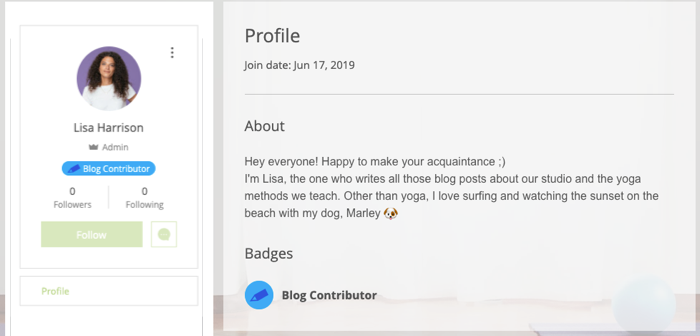
Members can use their Profile to introduce themselves to the community. The Profile page includes the following areas for members to personalize:
Display name: Members can choose what name, or nickname, they want on their profile. The default display name depends on your signup form:
Default signup form: The name is based on the email address the member entered.
Custom signup form: If you included the first name and last name fields, the name is based on the details the member entered.
Display image: If your member signed up through Google or Facebook, their default picture is taken directly from their account. They can change this image at any point.
About: This section is initially blank, so members can write whatever they want to share. They can also include images, videos and GIFs in this description.
Note:
When a member changes their display name or image, it doesn't update the details that are already stored in your Member List.
Tip:
The Profile page also shows details like your member's join date and any badges you assigned. You can customize the text on this page and add more fields for members to fill.
Encourage member engagement
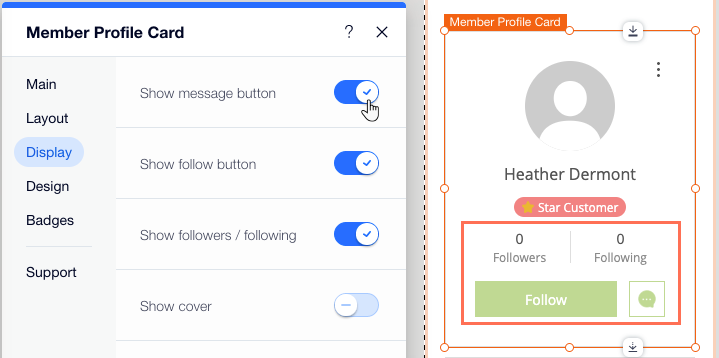
When a member views another member's profile, encourage them to stay in touch. You can add buttons that let members follow each other's activity and send a message through Members Chat.
Set a profile to private or public
Your site members can set the privacy of their own profile:
Private profile: Their details are only visible to them; other members cannot see their information. This is for members who just want to track of their own activity on your site.
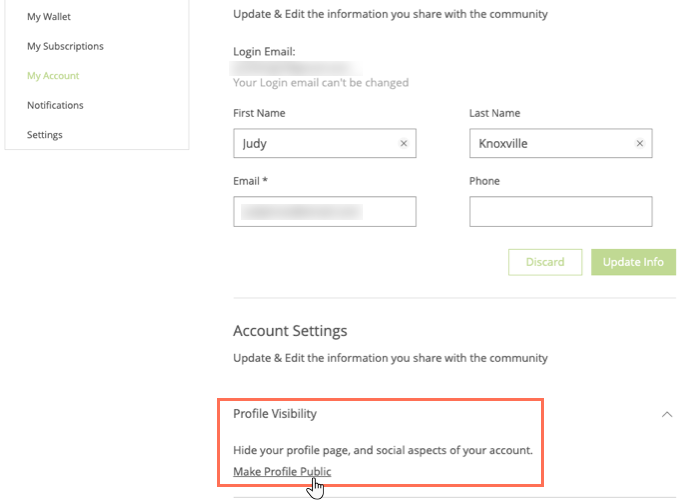
Public profile: Other members can see their information and profile on the Members page, follow their activity and send them messages.
When a new member signs up, they can select a checkbox to join your community which makes their profile visible to others. However, they can change this at any time from their My Account page.
This article is credited to the Wix team - https://support.wix.com/ and we thank them for that!