Payouts are funds transferred from Wix Payments to your bank account.
Important:
To receive payouts, your Wix Payments account must be successfully verified.
In order to receive payouts to your bank account, your account status must be Active.
Payouts are only made once there's an available balance of at least $1.
Payout stages
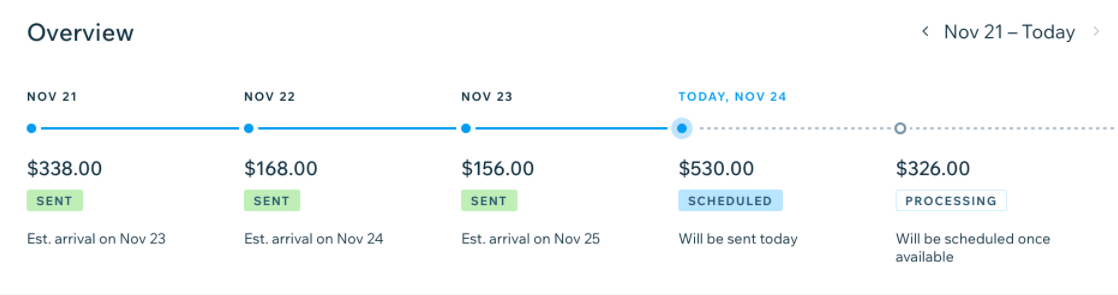
Each payment from your customer goes through 3 stages before it reaches your bank account. These are:
Processing payment: After your customer makes a successful payment, the payment is processed. Processing usually takes 2-5 business days and is comprised of 2 parts, which happen simultaneously:
The settlement period, which usually takes 1-2 days, but can take longer depending on your customer’s payment method.
At the same time that the payment is settling, it also goes through a pending period in Wix Payments. The pending period usually lasts between 2-5 business days, and exists to protect your business, your customers and Wix Payments from fraudulent activity.
Scheduled payout: The payment is added to your next scheduled daily, weekly or monthly payout.
Note: If you have more than one payment method active in your Wix Payments account, your payouts may be grouped by payment method. Learn more about working with grouped payment methods.
Sent payout: The payout has been sent from Wix Payments and should arrive in your bank account within 3 - 5 business days. Factors such as the day-of-the-week, the currency, or bank holidays will decide the arrival date of your payout.
See how payouts are calculated
A payout is the sum of all credits (funds coming in) minus all debits (funds going out).
The calculation takes into account the following:
Credits:
Payments: Funds from payments accepted through Wix Payments.
Funds Added: Funds you added to cover a negative balance for a given payment method in your Wix Payments account.
Funds Transfer: Funds transferred from Wix to your Wix Payments account.
Refund Reversal: Any refunds that have been cancelled.
Chargeback Reversal: Any chargebacks that have been cancelled.
(When applicable) Reserve Released: If there are funds released from reserve, they're added to your next payout.
Debits:
Refunds: Any refunds made to your customers.
Refund Reversal Fee: The fee for processing the reversal transaction.
Chargebacks: Any chargebacks called by your customer's card issuer.
Chargeback Fee: The fee for processing a chargeback transaction.
Chargeback Reversal Fee: The fee for processing a chargeback reversal transaction.
(When applicable) Reserve Held: The portion of the payout that stays in reserve is deducted from the amount.
If the resulting sum (credit - debit) is a positive number, the amount is paid out to your bank account, and the payout status switches from Scheduled to Sent.
Payout schedules
Important:
Payouts are based on your site's time zone even if this is different from the time zone on your computer.
There are three payout schedules you can choose from, depending on the needs of your business:
Daily: Payouts are sent every day, including transactions that were made before the daily cut-off time*. Any transactions received after that time will be included in the next day's payout.
Weekly: Payouts are sent every Monday. You can change this to any other day of the week through your account settings.
Monthly: Payouts are sent on the 1st of every month. You can change this to any other day of the month through your account settings. In months with less than 29 days, payouts are sent on the last day of the month.
* About the payout cut-off time: Depending on your region, Wix Payments sends payouts every day at the following time:
US: 6AM EST.
Europe: 6AM GMT.
You can choose and change your payout schedule at any time from your Wix Payments account settings by following the steps below. Whichever schedule you select will apply to all your Wix Payments payment methods.
Go to Accept Payments in your site's dashboard.
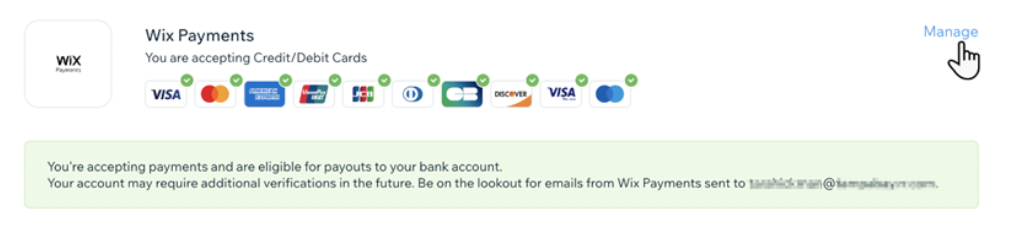
Click Manage next to Wix Payments.
Scroll down to Payout schedule.
Select the checkbox next to the relevant option:
Daily
Weekly
Use the drop-down menu to select a day.
Monthly
Use the drop-down menu to select a day.
Click Save.
Receiving your first payout
Your first payout can only be scheduled once your Wix Payments account is successfully verified. After receiving your first payment, it's available for payout within an average of 7 days. Once the payout is sent, it takes an average of 3-5 business days for the payout to reach your bank account. Learn more about receiving your payouts.
Viewing your payouts
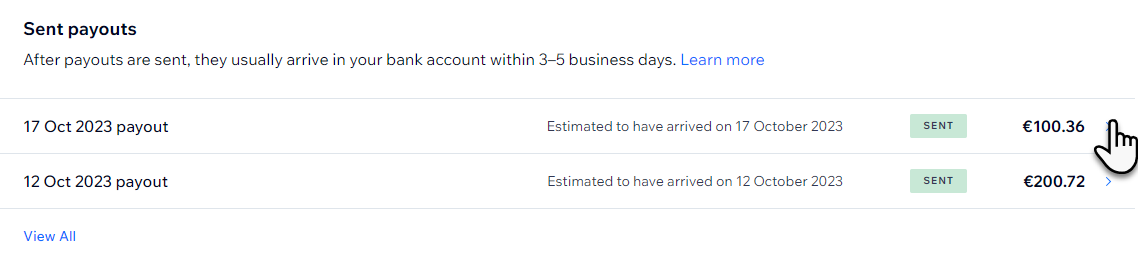
View information about previous and upcoming payouts, as well as detailed information about each payment.
Go to Payouts in your site's dashboard.
Click the relevant payout to view details.
Tip:
You can still access your Wix Payments dashboard, even if your Wix Payments account has been disconnected.
Grouped payment methods
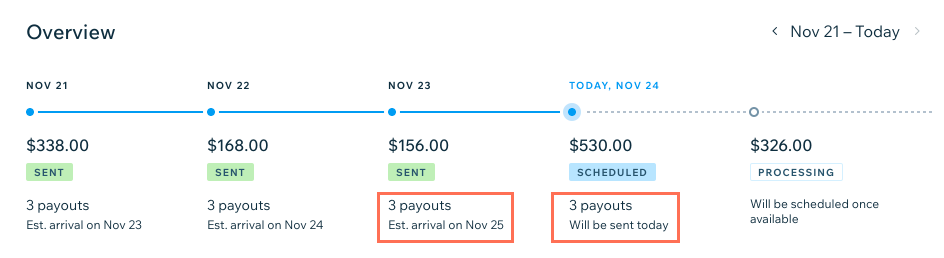
If you have grouped payment methods in your Wix Payments account, both your scheduled payouts and sent payouts are organized according to their group. As a result, you have several payouts scheduled or sent on the same date. Learn more about working with grouped payment methods.
Tip:
By hovering over the overview date, you can see a breakdown of which payouts are due on that date.
Reserve Funds
In some cases, Wix Payments needs to hold a portion of each payout for a set amount of time. This is known as a reserve.
Keeping a percentage of your payouts in reserve protects you and Wix Payments from financial risk and covers any potential chargebacks or refunds. Once the funds in reserve become available, we automatically include them in a future payout.
There are two kinds of reserves Wix can hold:
Rolling reserve: This is the most common type of reserve. A rolling reserve is when a percent of each payout is held for a set number of days before being released in the next available payout. Rolling reserves are held from each payout on an ongoing basis.
One-time reserve: This is a specific amount of money held from your available balance one time for a set number of days, then released in the next available payout.

If your Wix Payments account is subject to a rolling reserve, you're notified by email of a change in your payout policy. A one-time reserve does not affect your payout policy.
Payouts on Hold
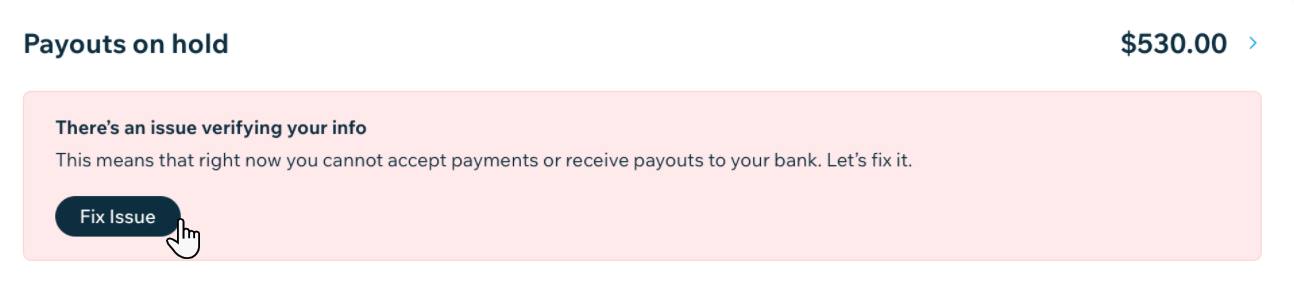
Payouts are placed on hold if there is an issue blocking your payout. Once the issue has been identified and resolved, the payout will be added to your next scheduled payout. Learn more about payouts on hold.
This article is credited to the Wix team - https://support.wix.com/ and we thank them for that!