Set up your pricing plans so that you can collect the necessary tax from clients who purchase them.
Important:
Different tax rules apply in different regions. Consult with an accountant or with your local tax authority for specific information relevant for your business.
To collect tax on the sale of pricing plans:
Go to your site in the Wix app.
Tap Manage

at the bottom.
Tap Pricing Plans under Catalog.
Tap Settings at the top.
Select Tax.
Tap the Enable Tax toggle.
Enter the tax rate (e.g. 10%).
Select how you want to add the tax:
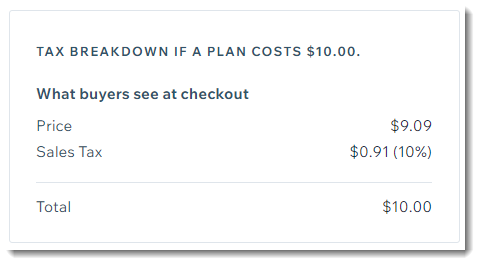
Include in the price: At checkout, clients see the price breakdown.
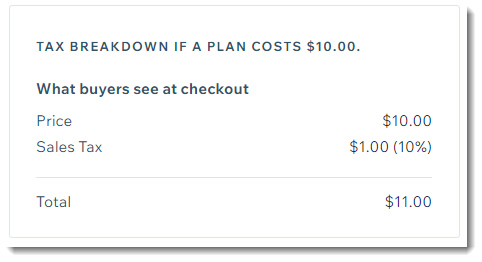
Add to total at checkout: The tax is added to the plan price. At checkout, your clients sees the tax that was added.
Tap Save.
This article is credited to the Wix team - https://support.wix.com/ and we thank them for that!