Use segments to group contacts based on their Pricing Plans subscription activity. This helps you send the right message to the right people such as active subscribers, new members, or people whose subscriptions ended.
Pricing Plans segments automatically use subscription data, such as purchased plans and subscription status, to group contacts.
Creating a segment for your subscribers
Create a segment from scratch using pricing plans filters to target the contacts you want to reach. For example, reach new subscribers with a welcome message, onboarding tips, or a first-purchase thank-you.
View an example segment of a welcome message for new subscribers
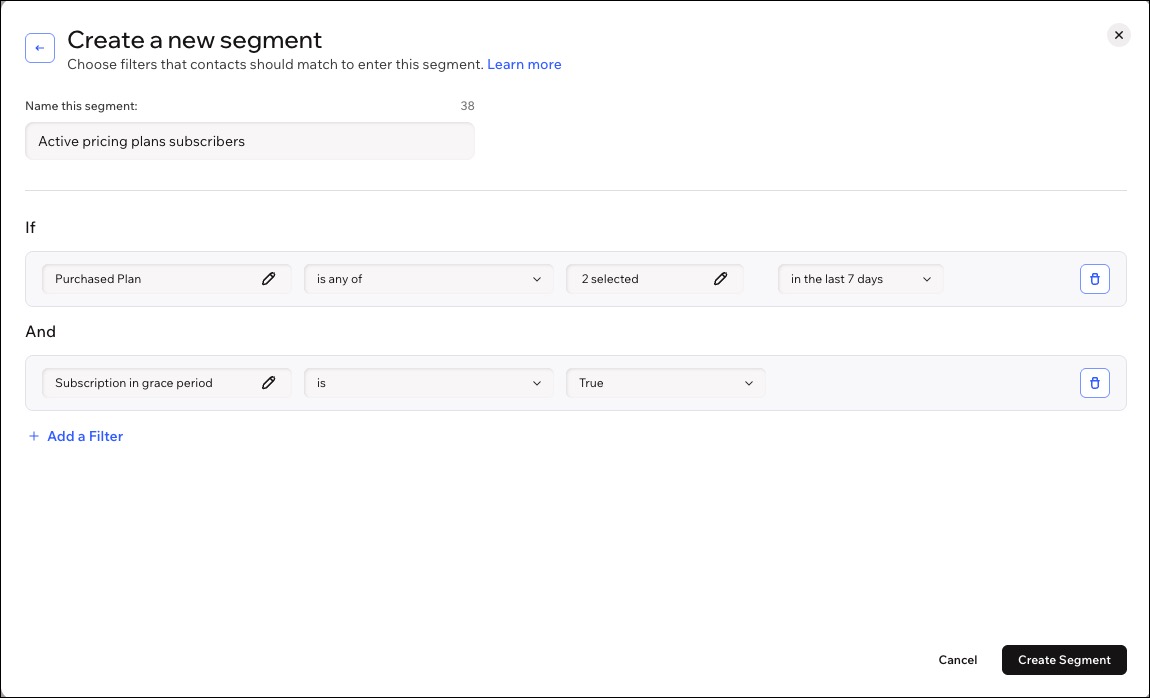
Purchased Plan: is any, in the last 7 days
Subscription Status: is Active
Subscription Type: is Pricing Plans
To create a segment:
Go to Contacts in your site's dashboard.
Click Manage Segments at the top right.
Click + Create Segment.
Click + Start from Scratch.
Enter a name for your segment (e.g. Active pricing plan subscribers).
Click + Add a Filter.
Choose a filter relevant to Pricing Plans:
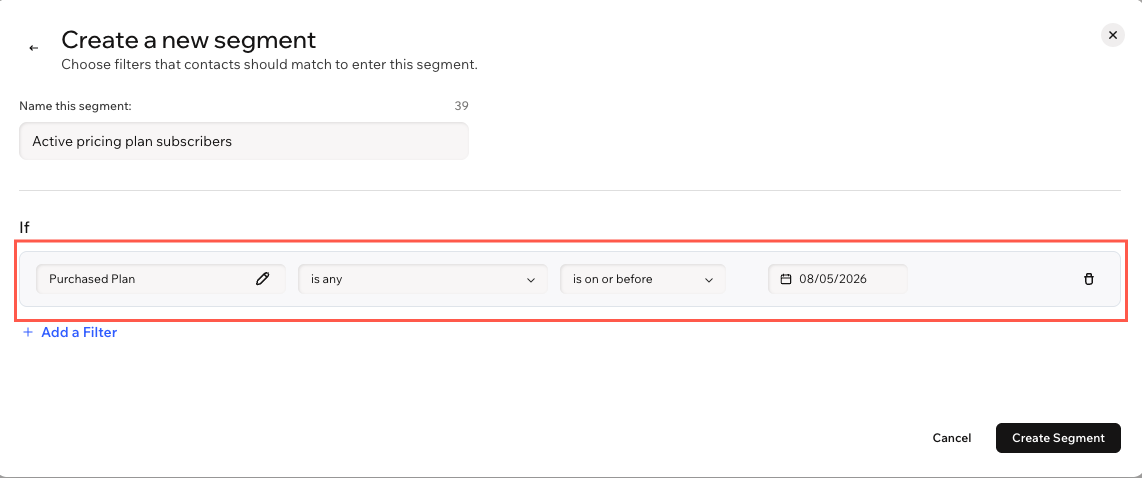
Purchased Plan
This option matches contacts who bought a plan.
Choose the relevant condition: is any / is any of.
Select the relevant value (e.g. last 7 days, is on or before).
(Optional) Choose the relevant date / date range.
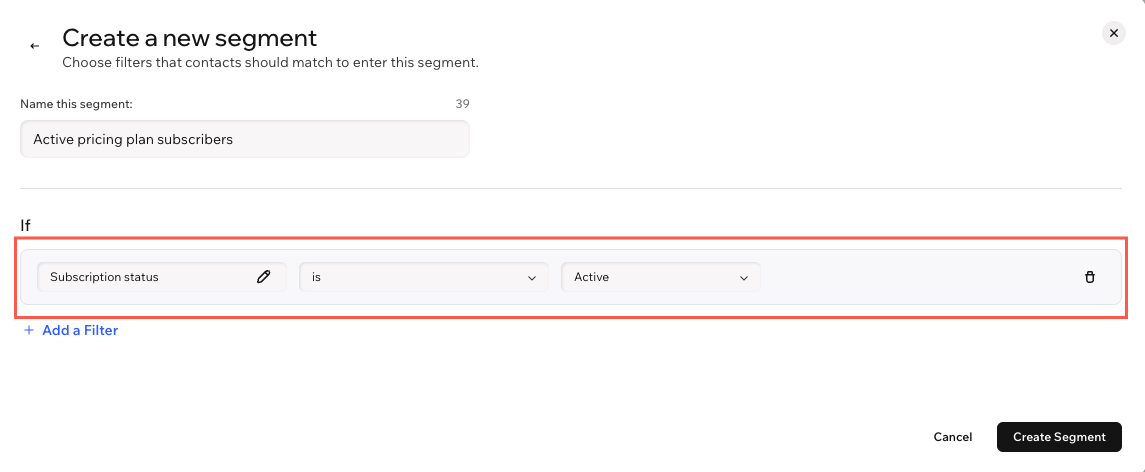
Subscription status
Choose the relevant condition: is / is not.
Select the relevant value: Active, Paused, Canceled, Ended.
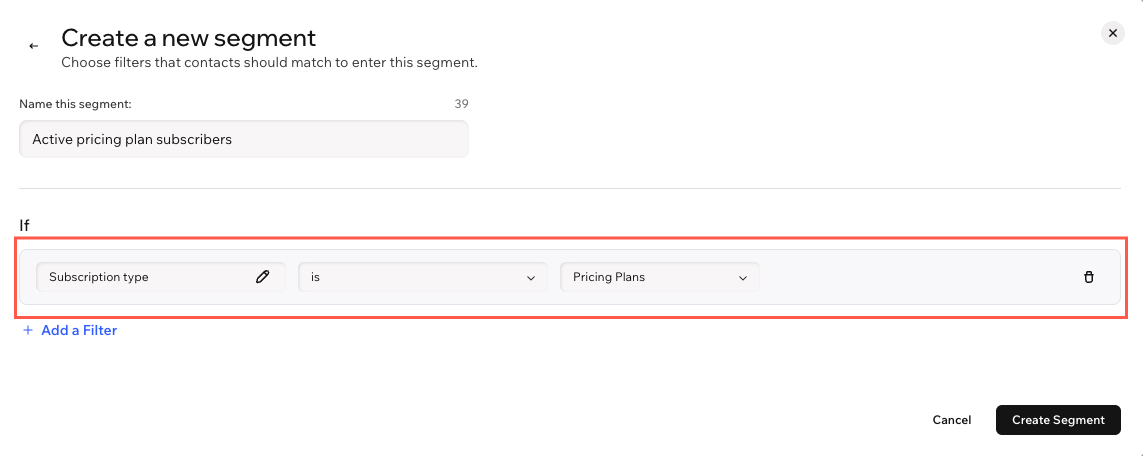
Subscription type
This option matches contacts by the kind of subscription.
Select is as the condition.
Select the relevant value (e.g. Pricing Plans).
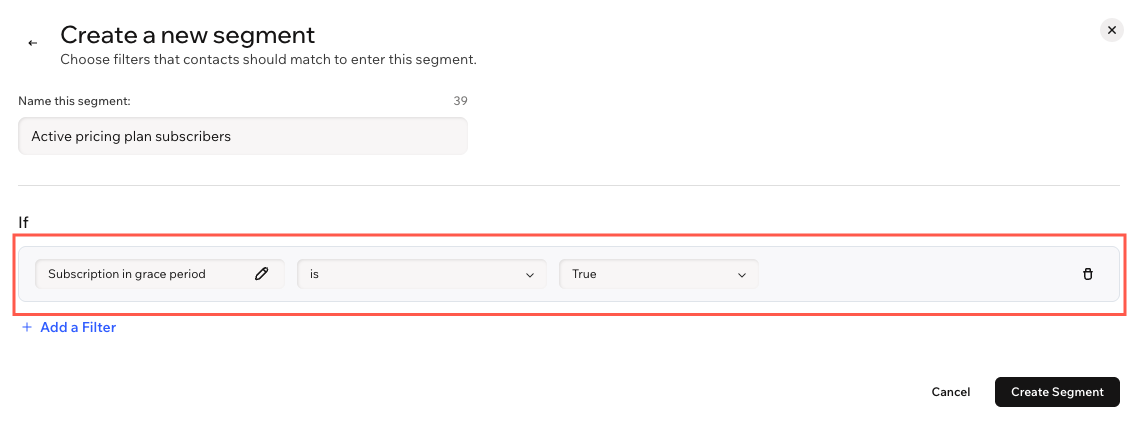
Subscription in grace period
This option matched contacts whose payment failed, but whose access has not been removed yet.
Select is as the condition.
Select the relevant value: True / False.
Click Create Segment.
FAQs
Click a question below to learn more about creating a segment for your subscribers.
Can I combine Pricing Plans filters with an OR relationship?
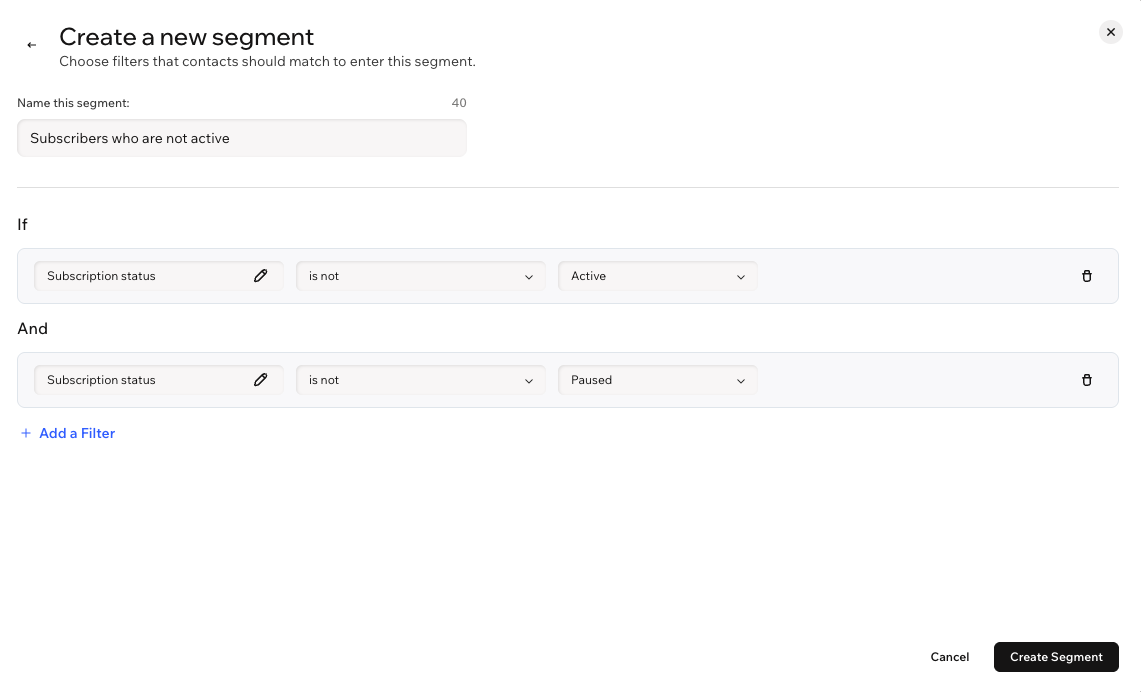
No. All filters in a segment must be true at the same time. To target multiple statuses, select the condition "is not" to exclude the statuses you don't want.
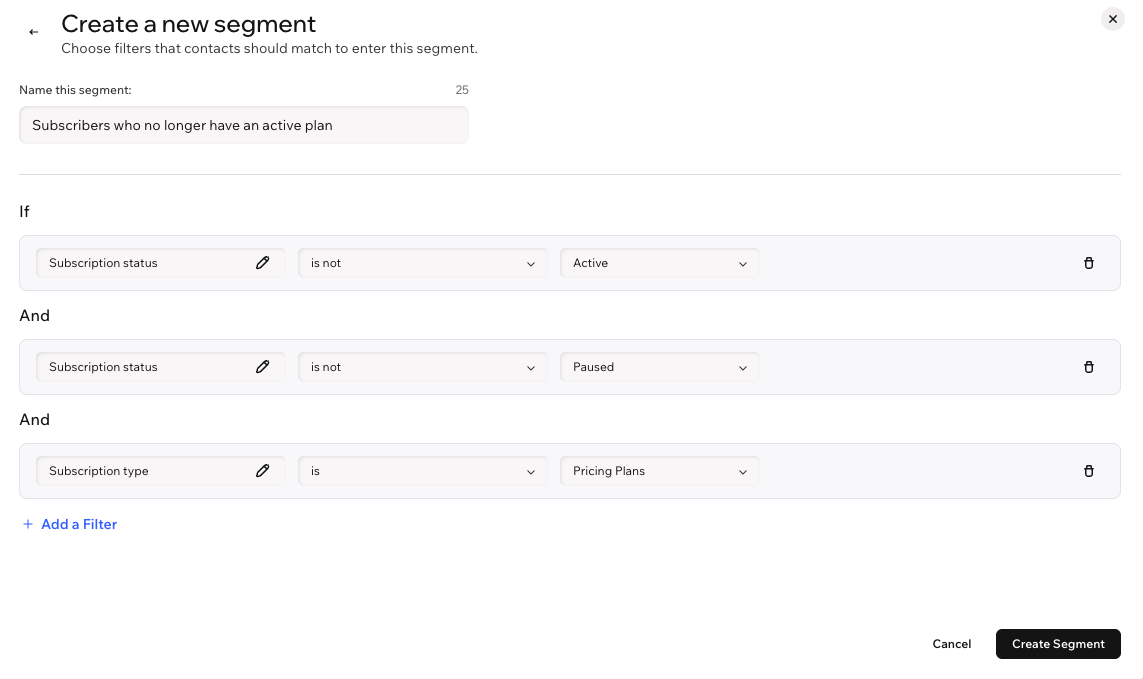
For example, to reach subscribers whose plans are either canceled or ended, add the following filters:
Subscription Status: is not Active
Subscription Status: is not Paused
Subscription Type: is Pricing Plans
This excludes Active and Paused subscribers, leaving only Canceled and Ended subscribers.
Can I exclude a specific status, such as everyone who is not 'Active?'
Yes. You can select "Subscription Status: is not Active" and "Subscription Status: is not Paused" as separate filters to reach Canceled or Ended subscribers in one segment.
How often do segments update?
Segments update automatically whenever a subscriber's status changes. You don't need to refresh or rebuild them manually.
This article is credited to the Wix team - https://support.wix.com/ and we thank them for that!