If you are experiencing difficulties viewing your live site, one of our Customer Care experts might ask you to perform a traceroute to determine exactly where the connection issue occurs.
Choose your operating system and follow the steps below to perform a traceroute:
Windows
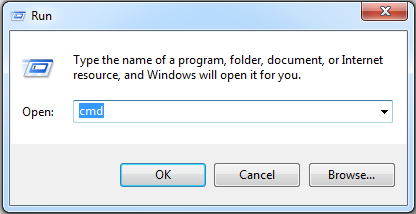
Right-click the Start menu and select Run.
Type cmd, and then click OK.
Enter your domain in the cmd window:
If you have a domain connected to your site: Type tracert www.domain.com (replace domain.com with your own domain name).
If you have a free site: Type tracert site-url-prefix.wixsite.com (replace "site-url-prefix" with your Site URL prefix, located in your account settings).
Press Enter on your keyboard.
Take a screenshot of the information.
Mac
Open the Terminal:
Press Cmd + Space to launch Spotlight.
Type Terminal and select Terminal from the search results.

Enter the URL of your site in the Terminal:
(If you connected a domain to your site) Type traceroute www.url.com (replacing "url.com" with your domain name).
(If you have a free site) Type traceroute site-url-prefix.wixsite.com (replace "site-url-prefix" with your Site URL prefix, located in your account settings).
Press Enter on your keyboard.
Take a screenshot of the information.
This article is credited to the Wix team - https://support.wix.com/ and we thank them for that!