Spotify is a great way to bring music to your site. With the Spotify app, you can add any song, album, or playlist you like straight from Spotify. When people visit your site, they’ll see a Spotify player that plays a 30-second preview of the track. If someone wants to hear the full song, they just need to log in to their Spotify account.
Step 1 | Add the Spotify app
Adding the Spotify app is a great way to showcase your audio to your visitors. You can add a Spotify player anywhere on your site.
To add the Spotify app:
Wix Editor
Click Add Apps

on the left side of the editor.
Search for the Spotify app in the search bar.
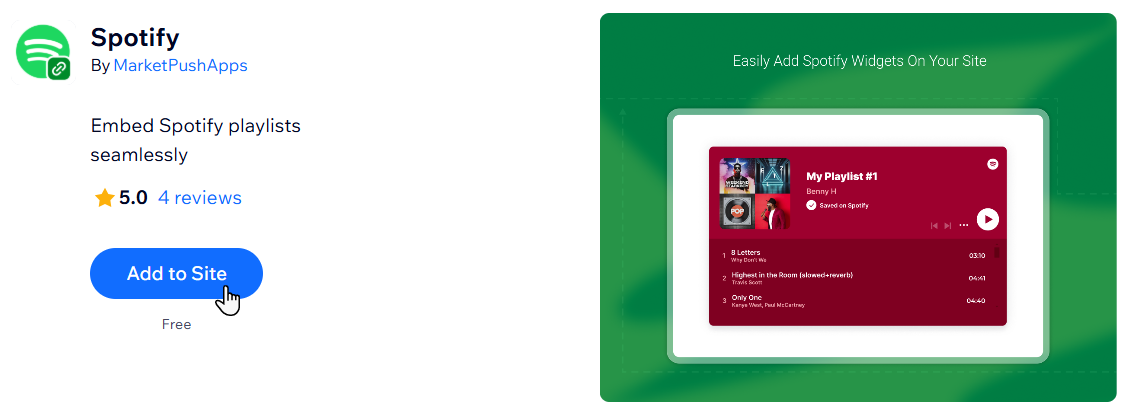
Click Add to Site.
Click Agree & Add to confirm.
Studio Editor
Click App Market

on the left side of the editor.
Search for the Spotify app in the search bar.
Click Add to Site.
Click Agree & Add to confirm.
Dashboard
Go to the Wix App Market in your site's dashboard.
Search for the Spotify app in the search bar.
Click Add to Site.
Select the relevant site and click Continue.
Click Agree & Add to confirm.
Step 2 | Search for music from Spotify
Add specific artists, songs, albums or playlists that you want to play on your site from Spotify. You can either add music manually, or, if you know the URI code (Uniform Resource Identifier code) for the music, you can add this code directly.
To add music from Spotify:
Click the Spotify player in your editor.
Click Spotify Connector.
Click the Widget Option drop-down and choose whether you want to display an artist, track, album, podcast or playlist.
Click Spotify next to Go to Spotify.
Enter the name of the artist, track, album, or playlist in the search bar.
Choose the relevant item.
Click the '...' icon, hover over Share and click Copy link.
Go back to the Spotify Connector panel and paste the link under Spotify URL.
Click Connect.
This article is credited to the Wix team - https://support.wix.com/ and we thank them for that!