Before you begin:
Multi-currency is currently available for eligible Wix Payments sites or for those connected to PayPal or Stripe as third-party payment providers.
When setting up Multi-currency, fees apply once transactions start taking place.
Multi-currency lets your customers view prices and pay in their local currency on Wix Stores, Wix Bookings, and Wix Donations sites, creating a localized and familiar experience. This makes it easier for international visitors and can help increase your sales.
Setting up Multi-currency
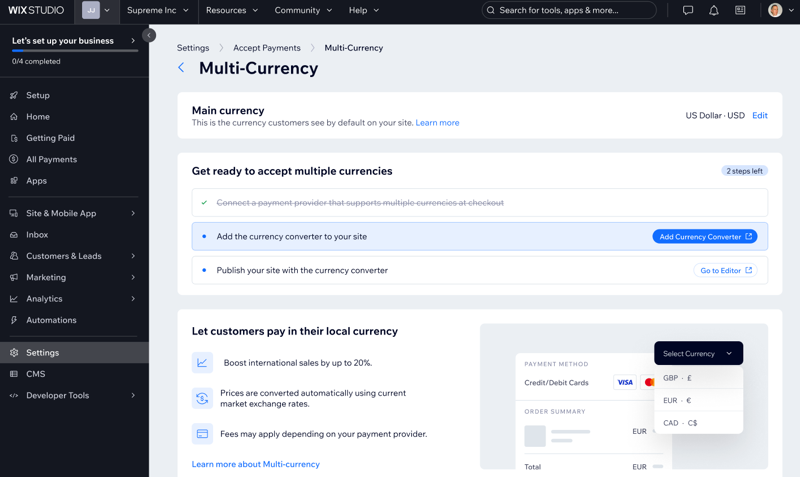
To let your customers pay in the local currency, your site needs to be properly set up. This includes connecting a supported payment provider, adding a currency converter, and ensuring your site is published with the currency converter for customers to see and use.
To set up Multi-currency:
Ensure you’ve connected Wix Payments, PayPal or Stripe
Add a currency converter to your site.
Ensure you have Wix Stores, Wix Bookings, or Wix Donations set up on your site.
Managing your currencies
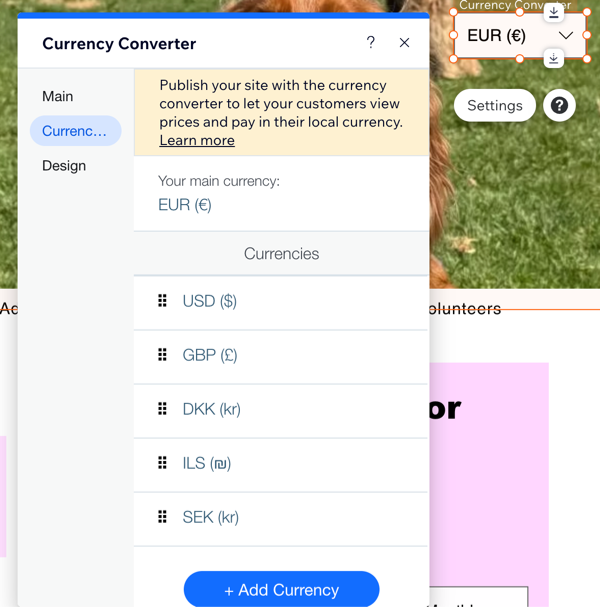
Manage your currencies by customizing your currency list—you can add new currencies, remove the ones you don’t need, and reorder them to suit your preferences. You can only manage currencies supported by Multi-currency and your payment provider.
Why are some currencies already selected in the currency converter?
The currency converter preselects currencies that are most relevant based on your site’s location to make setup quicker and easier.
To manage your currencies:
Go to Multi-Currency in your site's dashboard from your desktop.
Click Manage Currencies next to Additional currencies.
Note: This will redirect you to the editor.
Click the currency converter and click Settings.
Click Currencies.
Choose what to do next:
Add currencies
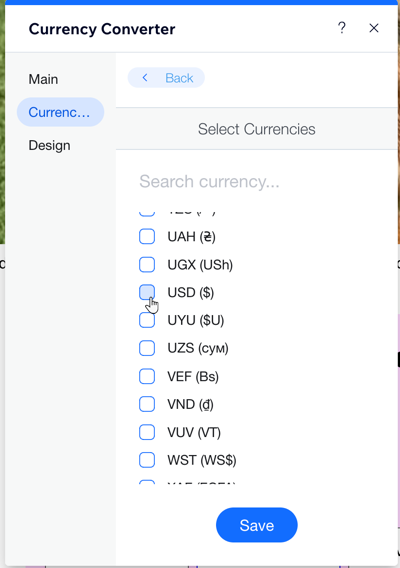
Click +Add currency.
Select the checkbox next to the currency.
Note: Currencies with a yellow exclamation point are 'display-only' currencies. This means customers can view prices in these currencies, but they won’t be able to use them at checkout.
Click Save.
Remove currencies
Click +Add Currency.
Deselect the checkbox next to the currency.
Click Save.
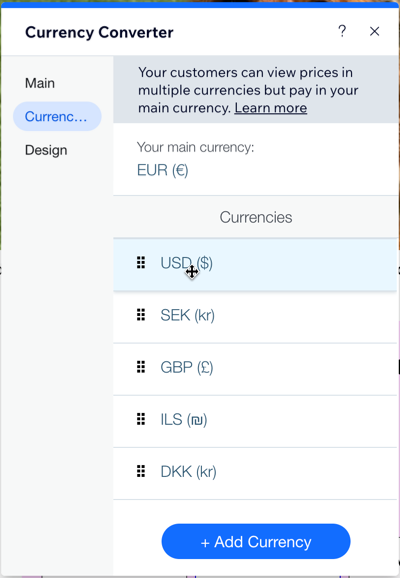
Reorder currencies
Reorder the currencies by dragging them in the order you would like customers to see them.
Remove the currency converter
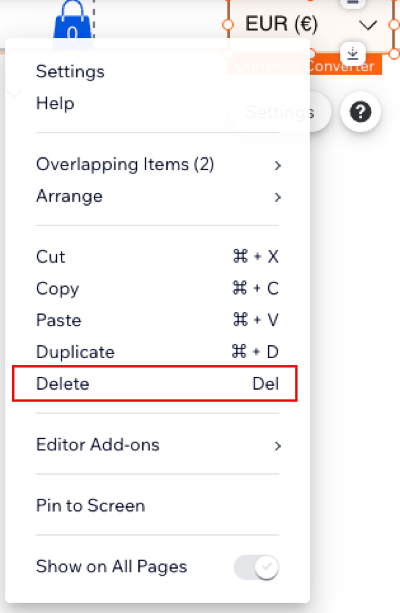
Select the currency converter, then right-click.
Click Delete.
Click Delete App to confirm.
FAQs
Click a question below to learn more.
Which payment providers support Multi-currency?
Multi-currency is available for eligible Wix Payments sites, as well as sites connected to PayPal or Stripe as third-party payment providers. Learn how to set up your provider in these guides:
Can I deactivate Multi-currency?
Yes, after completing the setup steps, Multi-currency will be automatically activated. You can deactivate it at anytime. This means customers will be able to view prices in their currency but they can only pay in your site's main currency.
To deactivate Multi-currency:
Go to Multi-Currency in your site's dashboard.
Click Deactivate next to Accept multiple currencies.
Click Deactivate.
Can I see reports for customers who checked out in different currencies?
Yes, you can. Multi-currency ensures that transactions in different currencies are recorded in your site reports. This allows you to view detailed data about customers who checked out in currencies other than your main currency. Learn more about your sales reports.
This article is credited to the Wix team - https://support.wix.com/ and we thank them for that!