In order to enjoy all of the Wix features, you need to allow Wix.com pop-ups in your browser. You can either allow all sites to send pop-ups and use redirects or allow only specific sites.
To disable the Google Chrome pop-up blocker:
Click the More icon

at the top right of your browser.
Click Settings.
Click Privacy and security on the left.
Click Site settings in the Privacy and security section.
Scroll down and select Pop-ups and redirects.
Choose what you want to do:
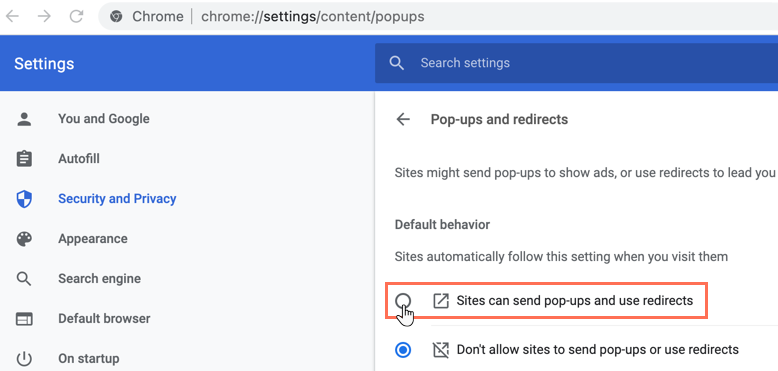
Allow all pop-ups
Select Sites can send pop-ups and use redirects.
Allow pop-ups only from specific sites
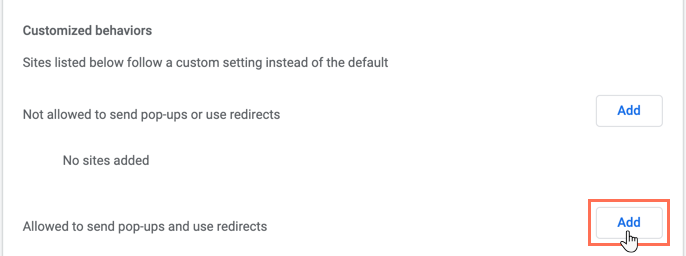
Click Add next to Allowed to send pop-ups and use redirects.
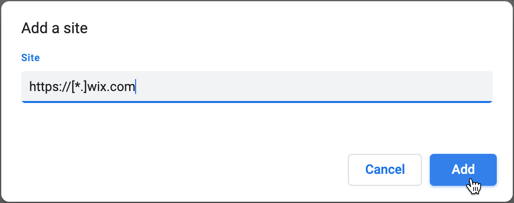
Type https://[*.]wix.com and click Add.
This article is credited to the Wix team - https://support.wix.com/ and we thank them for that!