You can customize the URL structure of your Wix Stores product pages and Wix Blog posts in your SEO Settings. This can help search engines better understand the content of your pages.
Important:
Customizing your site's URL structure is an advanced topic. Customizing your URLs incorrectly can drastically change your site and cause issues with its search engine ranking. Before you make any changes to your site's URL structure, it's a good idea to consider if the possible risks to your site's ranking are worth the benefits of making the change.
Default URL structures for your site's pages
When you create a page for your site, Wix automatically creates a new URL for it. The URL is based on your site's domain and has a unique name for the page at the end of it (known as a URL slug). An example URL of this type is: "https://mystunningwebsite.com/about".
Some Wix pages have a unique default URL structure. These URLs consist three parts: your site's domain, a prefix, and a URL slug based on the product's name.
You can see the Wix URLs that use this format in the table below:
Wix page type | Default URL structure |
Wix Stores product | https://domain.com/product-page/{product slug} |
Wix Blog post | https://domain.com/post/{post slug} |
For example, Wix Stores products use the prefix "product-page". A URL for a product called "Red Wool Sweater" would look like this: "https://mystunningwebsite.com/ product-page/red-wool-sweater".
For this type of URL, you can use SEO Settings to customize the URL structure of all pages of this type, including the prefix.
Using automatic redirects
By default, Wix sets up automatic redirects for your site's pages when you customize the URL structure in SEO Settings. This means that if a visitor tries to use the old URL for a page on your site, they'll be automatically taken to the new URL.
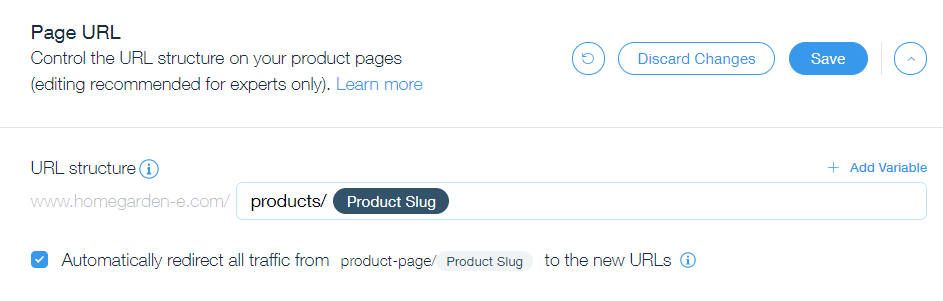
If you choose not to set up automatic redirects, you’ll need to manually add a group redirect in the URL Redirect Manager after you save any changes to your URL structure. Learn More
Customizing your URL structure in SEO Settings
Follow the steps below to customize your page's URL structure in SEO Settings.
To customize your URL structure:
Go to SEO & GEO in your site's dashboard.
Scroll down to Tools and settings.
Click SEO Settings.
Select the page type that you want to edit.
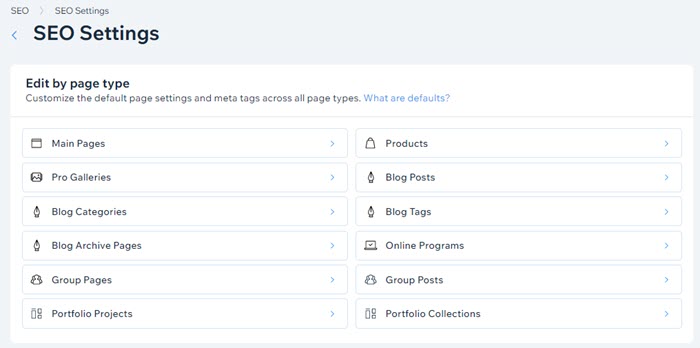
Click Edit beside Page URL.
Customize your URL under URL Structure.
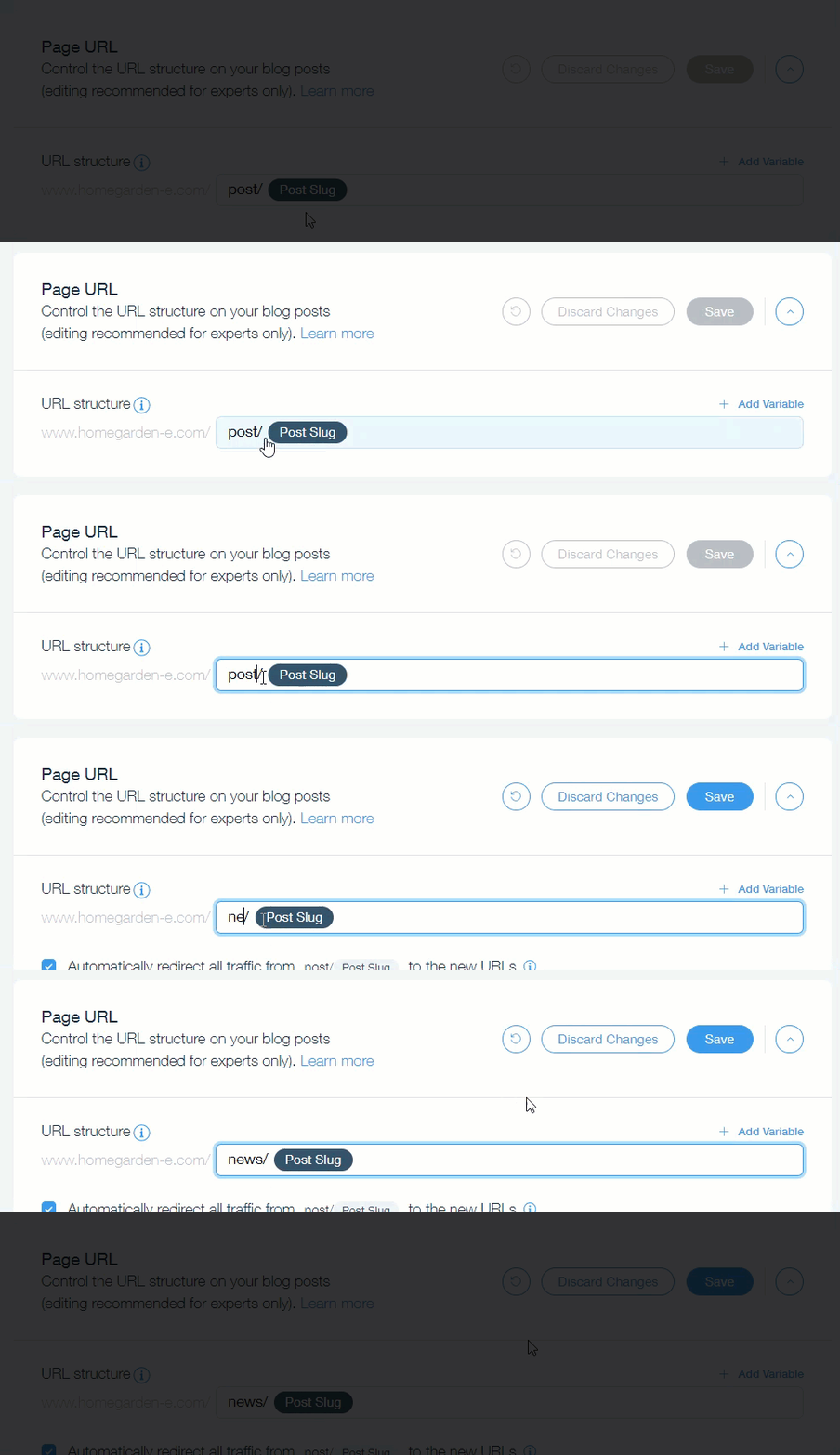
Select or deselect the Automatically redirect all traffic box checkbox:
Selected: Let Wix set up automatic redirects for your pages.
Deselected: Manually set up your own redirects. Learn how
Click Save.
Click Confirm Changes.
Tips:
You can add variables to your URL structure by clicking + Add Variable. Your URL structure must include at least one variable.
Search engines like Google recommend using a simple structure that is easily understandable to your site visitors. Learn more
Resetting your URL structure to default
If you changed your URL structure and want to return it to the way it was, you can reset it back to the default structure.
To reset your URL structure:
Go to SEO & GEO in your site's dashboard.
Scroll down to Tools and settings.
Click SEO Settings.
Select the page type that you want to edit.
Click Edit beside Page URL.
Click the Reset to Wix Default icon

.
Click Save.
This article is credited to the Wix team - https://support.wix.com/ and we thank them for that!