When moving your site to Wix, it's important to set up 301 redirects since the URL structure from your old site host, might look slightly different to how it looks at Wix. You can redirect from one URL to another or from one domain to another.
You can also create a group redirect which redirects related URLs that share the same path.
For example, if you're using Wix Stores, your old site might have used the path "mystunningwebsite.com/ products/product-name" for your product pages, but in Wix we use the path "mystunningwebsite.com/ product-page/product-name". With a group redirect, you can change the path ( products -> product-page) all at once so you don't have to do it for each product page.
To set up a group redirect:
Go to SEO & GEO in your site's dashboard.
Scroll down to Tools and settings.
Click URL Redirect Manager.
Click + Create New Redirect.
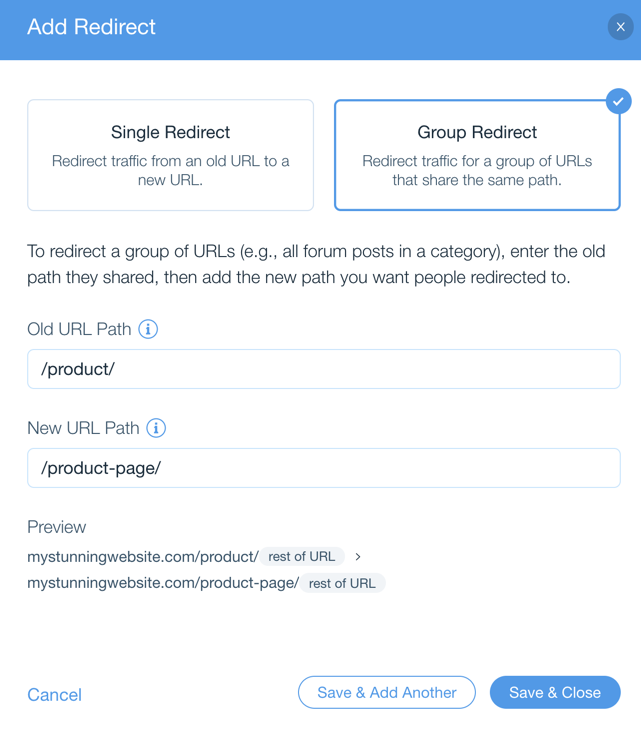
Select Group redirect.
Enter the original path for the group of pages under Old URL Path.
Note: For the example mentioned above, we would enter "products".
Enter the new path for the group of pages under New URL Path.
Note: For the example mentioned above, we would enter "product-page".
Click Save & Close.
Note:
After you create a 301 redirect, it will take a few minutes to take effect before you can view it.
Limitations of the Group Redirect Tool:
It is not possible to:
Add spaces in either the old or new path.
Use a path which has already been used in another redirect (single or group).
Redirect from your site's home page.
Add group redirects for external domains.
Redirect a group of pages to a single page (e.g. mystunningwebsite.com/products/product-name to mystunningwebsite.com/product-gallery).
This article is credited to the Wix team - https://support.wix.com/ and we thank them for that!