Create saved custom collection views, each with different sorts, filters, and visible fields. This allows you and site collaborators to switch between views that cater to different workflows, use cases, and data visualization. In each view, you can choose a default layout, hide and reorder fields, sort or filter items, and mirror the item order to your live site. Create as many saved views as you and your team need.
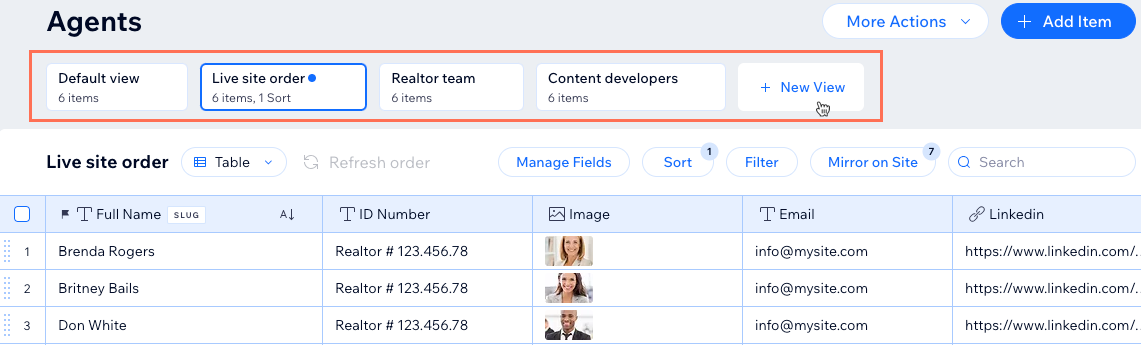
To create custom views in your collection:
Go to CMS in your site's dashboard. Alternatively, you can click CMS

in your editor, then click Your Collections.
Click the relevant collection.
Click + New View at the top.
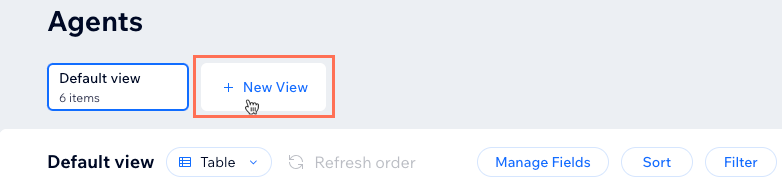
Enter a name for the collection view and press Enter on your keyboard.
Choose how you want to modify the view:
Choose a table, list, or gallery layout
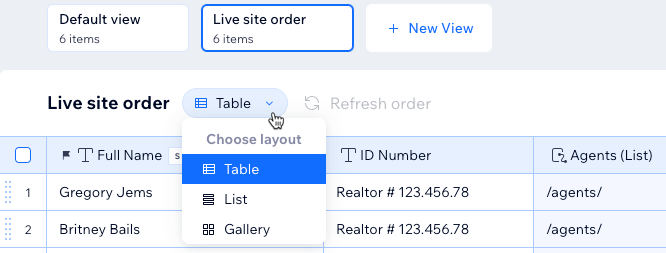
Click the Layout drop-down and choose which layout you want to view your collection in:
Table: View the collection in an editable table with items as rows and fields as columns.
List: View the collection items in a list where you click to open individual items to edit their field values.
Gallery: View the items in a gallery where you click to open individual items to edit their field values.
Manage the fields
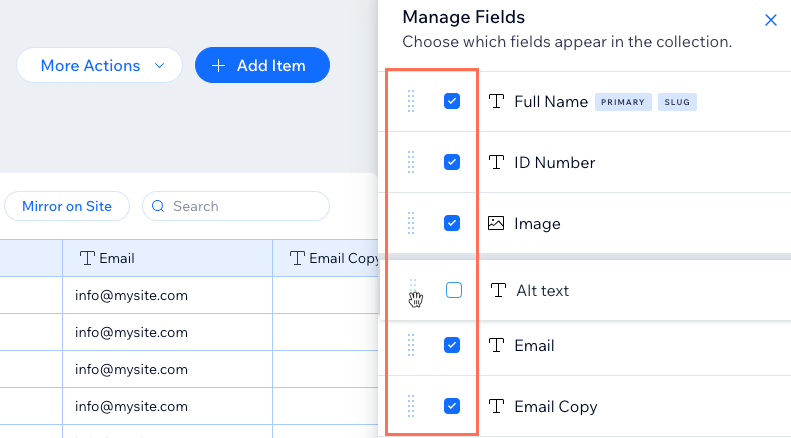
Click Manage Fields.
Choose what you want to do:
Show or hide fields: Click the checkboxes next to the relevant fields to show or hide them from the collection view. If you hide a field, you can still connect it in datasets.
Reorder fields: Click and drag the Reorder icons

next to the fields to change the order in which they appear in your collection view.
Note: From here, you can also perform the following actions that affect every collection view and not just the one you're working in:
Edit field: Click the relevant field to edit its name, field type, validations, or default values.
Note: It is not possible to change the field type for 'Primary' fields, 'System' fields, or for fields in collections that are added to the translation manager in Wix Multilingual.
Duplicate field: Hover over the relevant field and click the More Actions icon

. Then select an option:
Duplicate field: Create a copy of the field without any values in the fields.
Duplicate field with content: Create a copy of the field with all the same values.
Make primary: Hover over the relevant field and click the More Actions icon
. Then select Make primary to make it the Primary collection field.
Delete field: Hover over the relevant field, click the More Actions icon
and select Delete. Click the Yes, delete field checkbox to confirm then click Delete.
Sort the items automatically
Click Sort at the top of your collection.
Click + Add a Sort.
Click the Sort by drop-down and choose the field you want to sort.
Select a sorting option under Select the order (e.g. A-Z, Low-High, Oldest-Newest). The options vary depending on the field type.
Click Add Sort.
Note: From the Table layout, you can sort the items manually. Click and drag the Reorder icon
next to the relevant items to change their order.
Tip: Enable the Mirror on Site toggle to use this same item order in your site's connected elements (e.g. repeaters, Pro Galleries). Learn more about the Mirror on site feature.
Filter the items by field value
Click Filter at the top right.
Click + New Filter.
Click the Select Field drop-down and choose the field you want to filter.
Click the Choose a Condition drop-down and select the criteria for your filter. The options vary depending on the field type.
(If necessary) Click the Enter a value field and enter the value you want to use for the condition.
Click Add Filter.
Notes:
These collection view filters do not filter items from your live site. Add filters to datasets to include or exclude items in your live site's connected elements.
You cannot add filters to a collection view if it has the 'Mirror on Site' feature enabled. Likewise, you cannot mirror the collection view’s order if the view contains a filter.
Mirror the item order on your live site
Use the same item order on your live site's connected elements (e.g. repeaters, galleries). Learn more about mirroring your collection view's item order with your live site.
Notes:
Any sorts you've added to datasets will override the order you set in your mirrored collection view.
You cannot add filters to a collection view if it has the 'Mirror on Site' feature enabled. Likewise, you cannot mirror the collection view’s order if the view contains a filter.
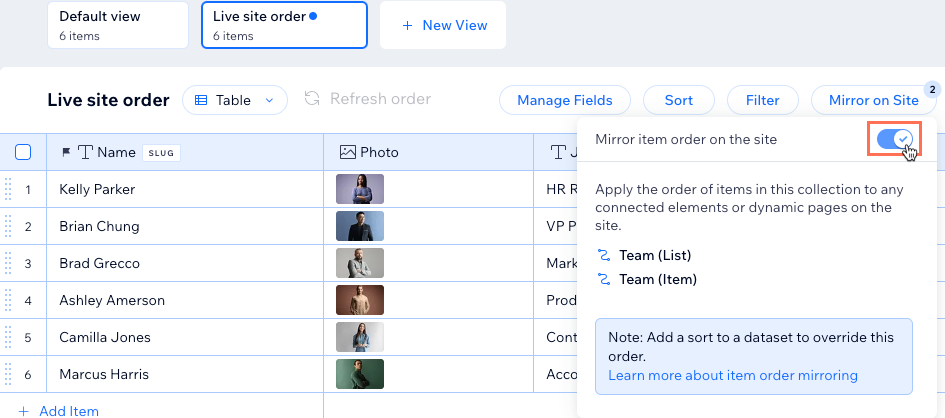
To use your collection view's item order on your site's connected elements:
Click Mirror on Site at the top of the collection.
Enable the toggle next to Mirror item order on the site.
To rename or delete a custom collection view:
Hover over the relevant view, click the More Actions icon
and select Rename or Delete.
This article is credited to the Wix team - https://support.wix.com/ and we thank them for that!