Connect HTML widgets (iFrames) to a dataset to display external websites (URLs) for each item in your CMS collection.
This is useful for displaying dynamic content like different event pages, partner websites, or portfolios where the website address changes for each item in your collection.
Note:
Currently, you can only connect the element to a collection field that contains a URL. It is not possible to connect raw HTML code (e.g. <iframe src..>) from the CMS. You can vote for this feature here.
Connecting an HTML widget to a dataset
Select an embed code element in your editor and connect it to a dataset. Then choose whether to display HTML code or a website address (URL) from your collection fields.
Select the HTML widget in your editor and connect it to a dataset that connects to your CMS collection. Then choose the URL or Text field that contains the website address you want to display.
Wix Editor
Add the embed a site element to your page:
Click Add Elements

on the left side of the editor.
Click Embed Code.
Click the Embed a site element to add it to your page.
Click the Connect to CMS icon

.
Click the Choose a dataset drop-down and select an existing dataset that connects to your collection. Alternatively, select Add a Dataset, then choose the collection you want to connect, give the dataset a name and click Create.
Click the HTML connects to drop-down and select the relevant field from your collection:
Tip: Select + Add to create and connect a new 'URL' or 'Text' collection field.
URL: (Recommended)Select the 'URL' field containing the HTTPS address you want to display.
Text: Select a 'Text' field containing a valid HTTPS URL.
Note: This field must contain a URL only. Raw HTML code is not supported.
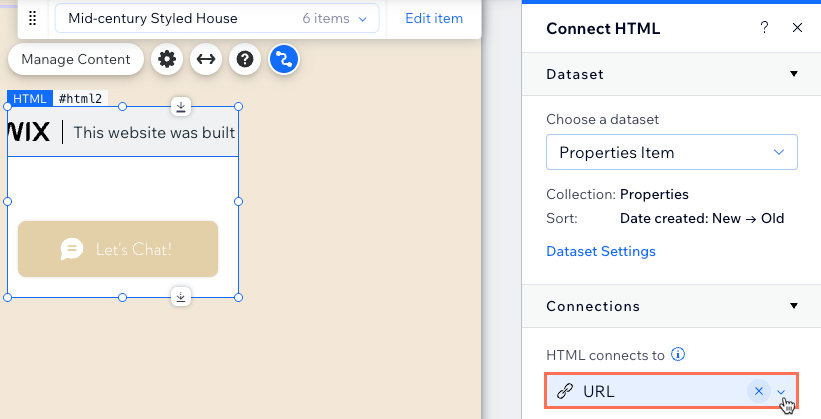
(If needed) Click and drag the borders of the element to resize it.
Click Preview to test your connections.
Click Publish if you are ready to make the changes go live.
Studio Editor
Add an embed code element to your page:
Click Add Elements

on the left side of the editor.
Click Embed & Social.
Click the Embed Site element to add it to the page.
Click the Connect to CMS icon
on the element.
Click the Choose a dataset drop-down and select an existing dataset that connects to your collection. Alternatively, select Add a Dataset, then choose the collection you want to connect, give the dataset a name and click Create.
Click the HTML connects to drop-down and select the relevant field from your collection:
Tip: Select + Add to create and connect a new 'URL' or 'Text' collection field.
URL: (Recommended)Select the 'URL' field containing the HTTPS address you want to display.
Text: Select a 'Text' field containing a valid HTTPS URL.
Note: This field must contain a URL only. Raw HTML code is not supported.
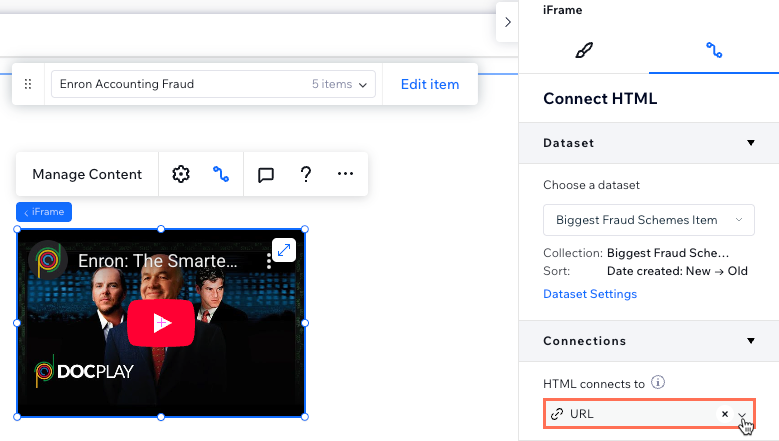
(If needed) Click and drag the borders of the element to resize it.
Click the Preview icon

at the top right to test your connections.
Click Publish if you are ready to make the changes go live.
FAQs
Click below for answers to common questions about connecting embed code widgets.
Can I connect raw HTML code from my collection?
No. Currently, you can only connect a field that contains a valid URL (web address). If you connect a Text field containing HTML tags (e.g. <iframe src...>), the code will not verify or render.
Can I connect an HTTP URL?
No. To ensure your site remains secure, Wix only supports HTTPS URLs for embedded content.
Why does my embedded site show a refused to connect error?
Some websites have security settings (X-Frame-Options) that prevent them from being embedded in an iframe on other sites. If you see a "refused to connect" error, it means the external site does not allow embedding.
Why isn't my content displaying?
If your content isn't showing:
Check the field type: Ensure you are connecting to a Text or URL field.
Check the URL: If using a URL, make sure it starts with https:// (http is not supported).
Check the code: If using a Text field, ensure it contains a URL only, not raw HTML code strings.
Is the embedded content secure?
Yes. Wix uses specific sandboxing attributes for embedded code to ensure your site remains secure. However, always ensure you trust the source of the code or URL you are embedding.
Can I filter the content displayed?
Yes. You can filter the content by adding filters to the connected dataset. For example, if you only want to show embed codes for items marked "Active", you can add a filter to your dataset to exclude other items.
What is a dataset?
Datasets are the vital link between the elements on your page and the content in your CMS collection. You can use datasets to create a two-way connection, allowing you to display collection content, capture user inputs, or both.
Datasets allow you to control which parts of your page elements connect to which fields in your collection. Each dataset connects to a collection and each element connected to the dataset connects to a field in the collection. This unlocks a new way of managing which content appears and where.
Learn more about adding and setting up a dataset.
This article is credited to the Wix team - https://support.wix.com/ and we thank them for that!