Your CMS (Content Management System) collection fields store content about each item in your collection. The field type determines the kind of content you can store in the field as well as which elements on your site can connect to the field.
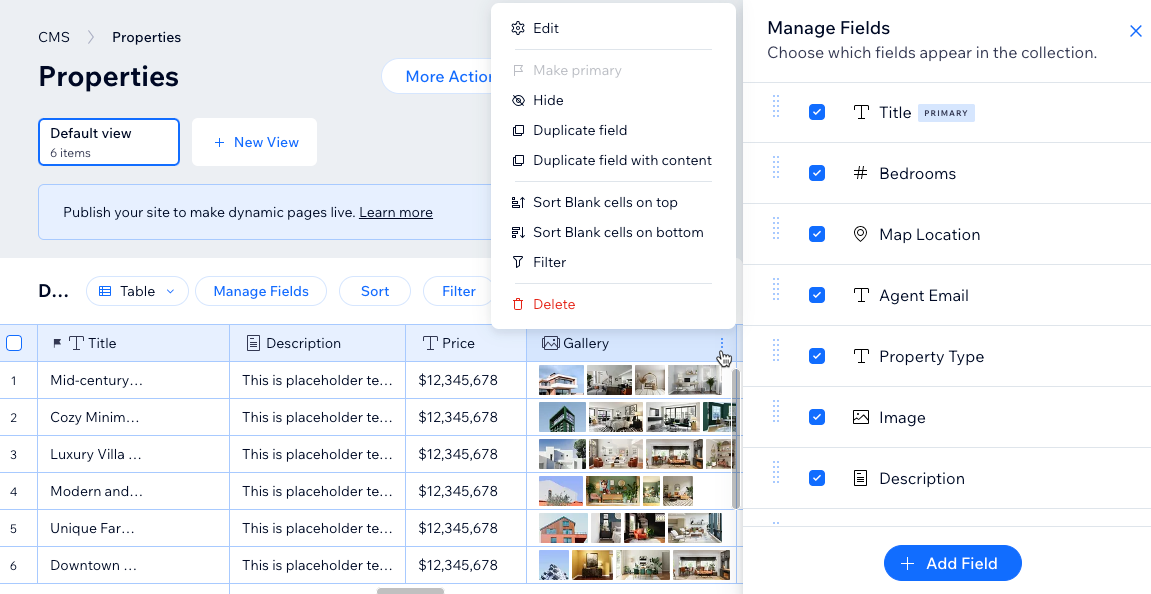
In the Table collection layout, the fields appear as vertical columns with the name of the field at the top and the content for each item stored in the cells. You can also choose the List or Gallery layout to manage your collection fields.
Primary fields
Every collection must have a Primary field, indicated by a Flag icon

next to the field name. By default, each collection includes a Primary field named "Title". We recommend making sure each item has a unique value in the primary field.
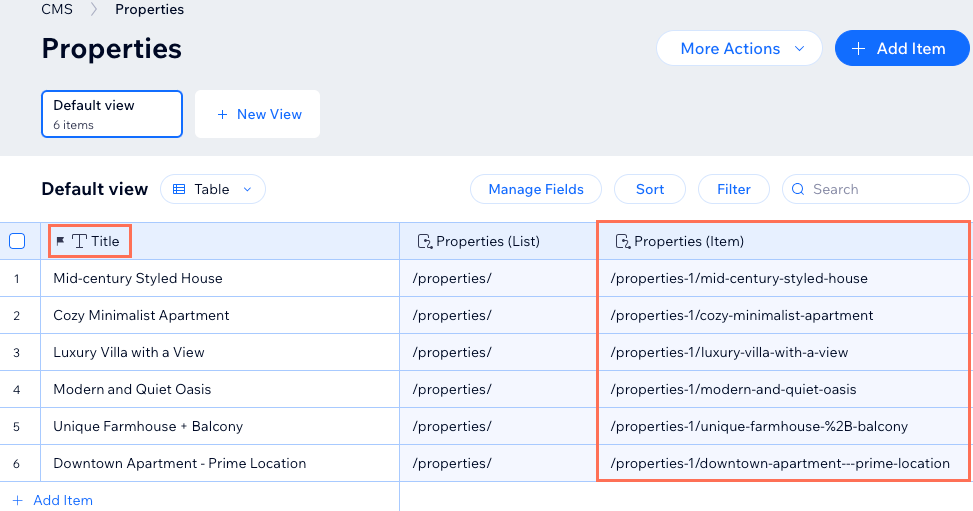
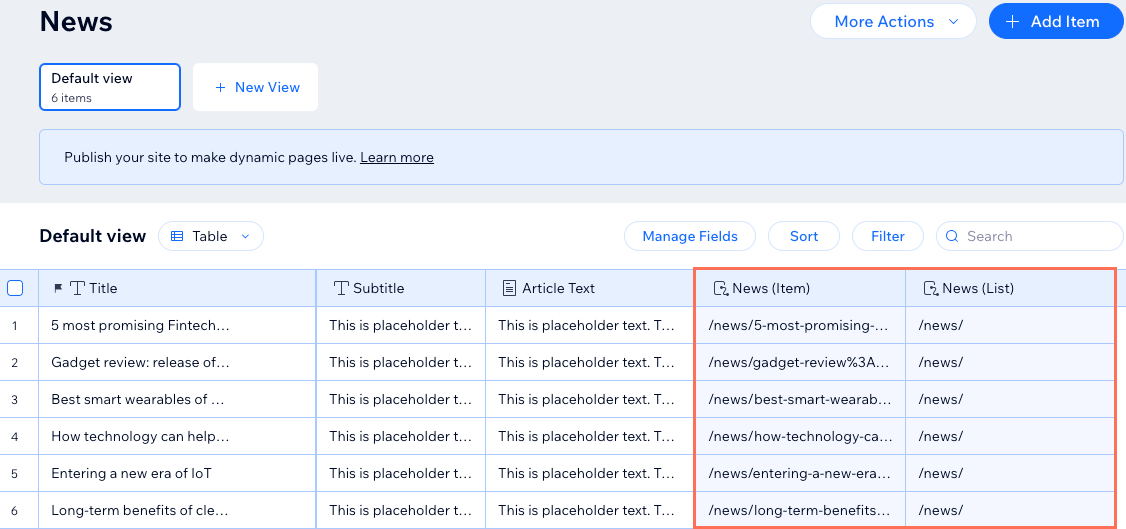
Primary fields are super important because they are used in the dynamic item page URL. Make sure to add unique content to the Primary field for each item that you wish to have a dynamic item page. Without content in the Primary field, a dynamic item page URL cannot be created for the item. In your collection, you can see how the Primary field is added to the Page Link field associated with your dynamic item page.
Primary fields are also important for reference fields. When you create a reference field, you select from the values in the Primary field of the referenced collection. If you change the Primary field in the referenced collection, the values displayed in the reference field change to match the values in the new Primary field.
Regular fields
You can choose from a variety of field types when adding fields to your collections. Each field consists of a field type, field name, field ID, optional help text, and the ability to encrypt the field content as Personally Identifiable Information (PII).
Additionally, you can set field validations to make certain fields mandatory, set character count limits, accept specific values in the fields only, and more. To prevent empty fields when you add new items, you can add default values that automatically populate in the fields.
Field type
The field type determines what kind of content you can save in the field and which site elements can connect to the field. For example, the multi document field type can only save document files and connects to the Upload Button input element that allows visitors to upload files to your collection.
You can change an existing field's field type to adjust the type of content it stores. Keep in mind that changing the field type can have negative effects, such as broken links, if the field was linked on your site. Also, you cannot change the field type for 'Primary' fields, 'System' fields, or for fields in collections that are added to the translation manager in Wix Multilingual.
What content can I store in each field type?
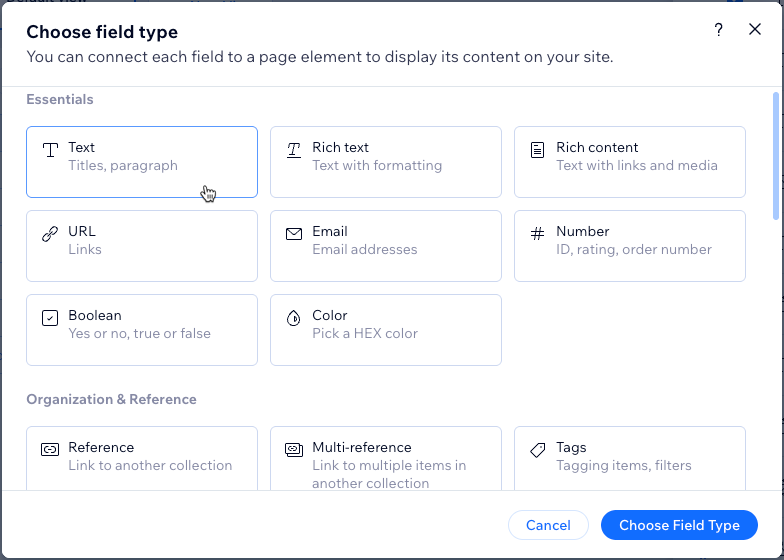
The field type you choose determines what kind of content you can store in the field. Choose from the following CMS field types:
Essentials:
Text: Store plain text for use with titles, descriptions, and other text-based content.
Rich Text: Create and manage text using formatting options, directly in your CMS.
Rich Content: Create and manage content with rich text formatting, media embeds, and other advanced features directly in your CMS.
URL: Store web addresses for use with creating hyperlinks and navigational links. You can use the following formats only: http://, https://, ftp://, mailto:, sms:, tel:
Note: Web addresses must be in the format http:// or https://. Entries that start with www. are automatically converted to http://.
Email: Store email addresses. This field ensures the address is in a valid format so links work correctly. You can connect it to buttons to allow visitors to send emails with one click.
Number: Store numerical data for various purposes (e.g. quantity, price, dimensions).
Boolean: Store binary "true" or "false" values that appear as checkboxes in the collection fields.
Color: Save HEX numbers that represent colors. You can use the colors in connected text elements, buttons, and section backgrounds.
Organization & Reference:
Reference: Create a relationship between content items by referencing another content item.
Multi-Reference: Create many relationships between content items by referencing multiple other content items. Those references can also be linked to multiple sources.
Tags: Manage and categorize content items using keywords or descriptive labels.
Category: Assign items to categories for organizing and filtering content. Categories are managed in category collections and create automatic two-way connections. When you add a 'Category' field, Wix automatically creates an 'Assigned Items' field in the connected category collection and a hidden 'Primary Category' field in your items collection. Learn more about using category collections.
Media:
Image: Store image files such as JPG, PNG, and GIF file types.
Tip: You can add images to fields by pasting their image URLs in the fields.
Media Gallery: Store multiple images or videos in each field.
Video: Store single video files for each item using file types such as AVI, MPEG, MOV and more.
Audio: Store single audio files for each item using file types such as MP3, WAV, FLAC, and more.
Document: Store single document files for each item such as PDFs, CSVs, and more. Tip: You can add documents to fields by pasting their document URLs in the fields.
Multiple documents: Store multiple document files for each item. You can also add multiple documents to fields by pasting their URLs in the fields.
Digital asset: Store one secured file per item for delivery to customers after purchase. Only available in catalog collections, where it can be mapped as the digital file for sale. Learn more about the 'Digital asset' field type.
Time and location:
Date: Store date values associated with content items.
Note: The Include time field checkbox has been replaced by the 'Date and Time' field type. If you previously enabled Include time field for a 'Date' field, it was automatically converted to 'Date and Time'. No action is needed, and your existing data was kept.
Date and Time: Store both date and exact time values associated with content items.
Time: Store time information for associated items independently of the date.
Address: Store structured data for physical addresses such as street names, city, state or province, postal code, and country.
Javascript (Velo code):
Object: Manage complex and structured data using custom objects or data structures. You can use the object field type to store and organize multiple related pieces of data as a single unit.
Array: Input and manage multiple values within a single field. You can use the array field type to handle a collection of related data, such as a list of options, tags, or other sets of related values.
Learn more about supported field types and their limitations.
Field name
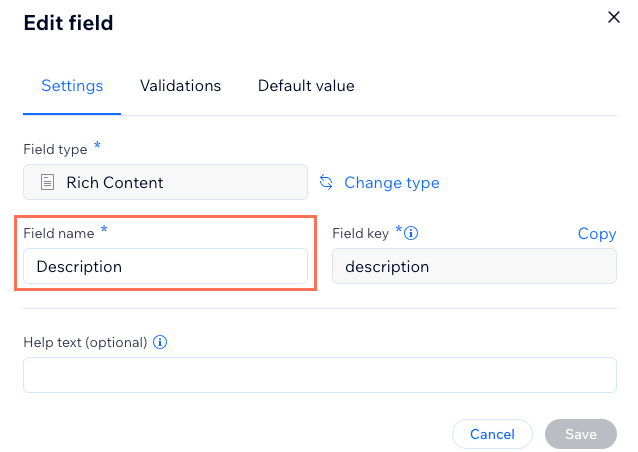
The field name appears at the top of each column in your collection's Table layout. You also see the field name when you connect elements to datasets that bind to your collection fields. Changing a field name changes it across your entire CMS and in your editor without any effects on your live site.
Field ID (Velo by Wix only)
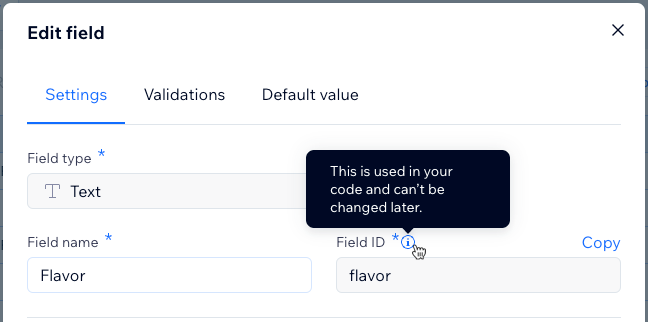
The field ID is used when referring to the field in code using the Data API or Dataset API. For example, if you want to insert an item using the Data API, use the field ID.
wixData.insert("CollectionName", {"fieldKey": "value"});When you create a new field, the field ID is automatically created based on the field name. You can edit the field ID while adding a new field, but you cannot change it once the field has been created. Note that field IDs cannot begin with $ or contain a period (' .').
Help text (optional)
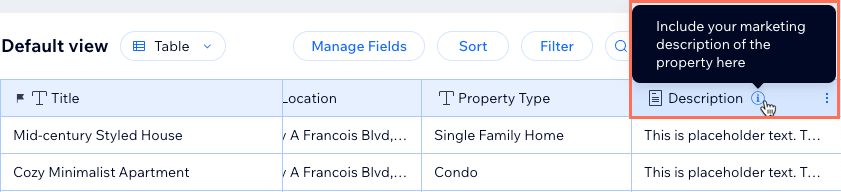
Add help text to a field if you want a tooltip in your collection that explains what the field is for. If you save help text to a field, an icon appears next to the field name in your collection. You can hover over the icon to view the help text tooltip. This text only appears in your collection for you and collaborators with CMS roles that allow them to view the collection.
Encrypt as Personally Identifiable Information (PII)
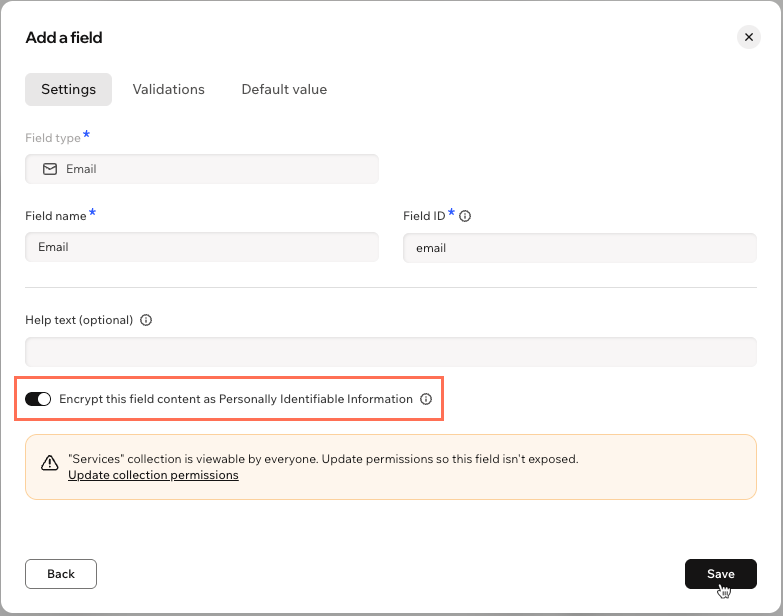
Enable this toggle for additional backend encryption of sensitive data, like social security and passport numbers. You can encrypt 'Text', 'Address', and 'Email' fields. Encryption is on by default for new 'Email' fields.
If anyone can view your collection, a warning appears when you turn on encryption. Learn more about storing PII data.
System Fields
The CMS automatically creates system fields for each collection that are used in the backend code. When you add dynamic pages for your collection, Page Link fields for your dynamic list and dynamic item pages are also automatically created as system fields. The default system fields are hidden from your collection, but you can view them when you click Manage Fields from your collection.
View the default system fields in the table below:
Field Name | Field ID | Field Type | Description |
ID | _id | Text | A unique identifier for the item. You can assign the ID a value when you import new content from a CSV file. Otherwise the ID is a random UUID. Using Velo by Wix you can also assign the ID a value when adding items with the Data API. Once defined the ID cannot be edited. |
Created date | _createdDate | Date and Time | The date and time the item was added to the collection. |
Updated date | _updatedDate | Date and Time | The date and time the item was last modified in the collection. |
Owner | _owner | Text | A unique identifier for the creator of the item. Used in collection permissions to determine who created each item. |
Note:
Time fields in an exported CSV file are in UTC+0. They are NOT in local time.
Primary Category fields
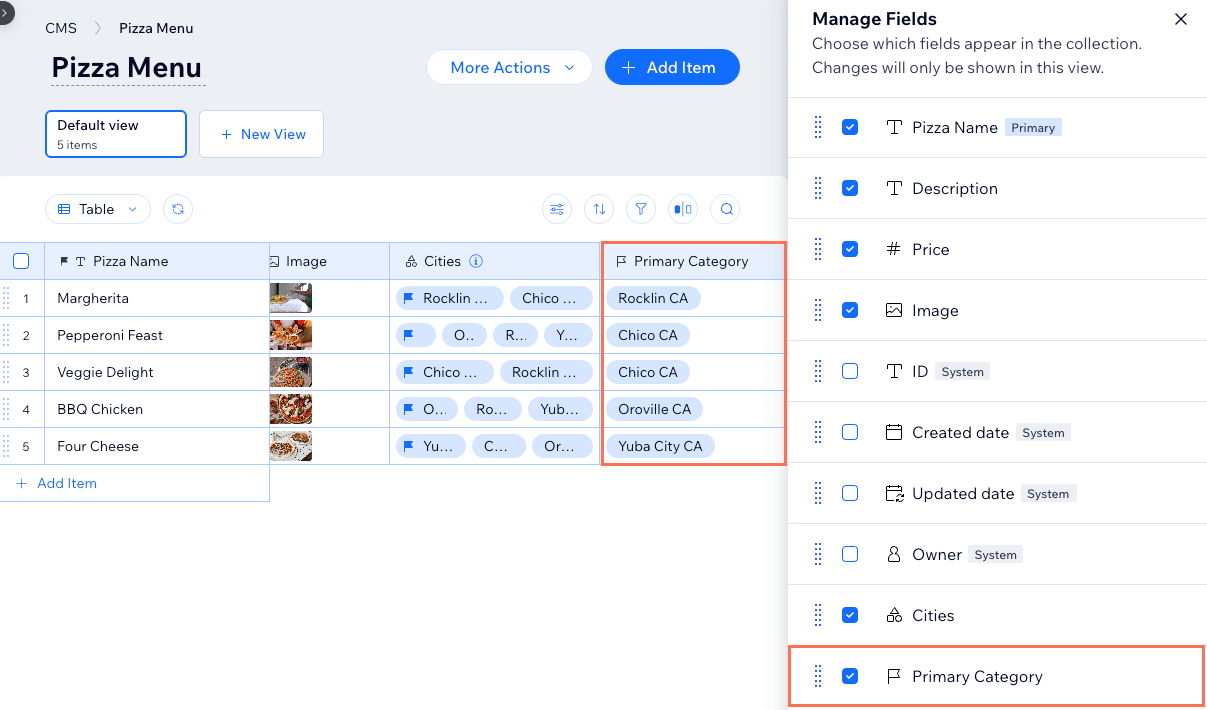
When you add a 'Category' field to your collection, a hidden 'Primary Category' field is automatically created. This field stores which category is designated as the primary category for items with multiple category assignments.
Why the primary category matters: The primary category helps search engines understand your content structure. When an item belongs to multiple categories, the primary category tells search engines which category best represents the item for SEO purposes.
How the primary category works:
The first category you assign to an item automatically becomes the primary category.
You can change which category is primary by clicking the Flag icon
next to a different category in the 'Category' field.
You can unhide the 'Primary Category' field in your collection view to see which category is primary for each item. It shows only one category even if the 'Category' field holds several.
You cannot delete the 'Primary Category' field independently. It is deleted only when the connected 'Category' field is deleted.
Learn more about managing primary categories.
Page Link fields
When you create dynamic pages, Page Link fields are automatically created in your collection as system fields. These fields create links for your dynamic list pages and for each item's unique URL on dynamic item pages.
The format of the Page Link field depends on the type of dynamic page:
Dynamic list pages: By default, the Page Link URL adds the collection name to the end of the dynamic list page's web address.
Dynamic item page: By default, the Page Link URL adds the Primary field value to the end of dynamic item page's web address for each unique item.
Tip:
Go to your editor's page settings to customize the variables used in your dynamic pages. Editing the URL values in your editor automatically updates the Page Link fields in your collection.
This article is credited to the Wix team - https://support.wix.com/ and we thank them for that!