When you're managing CMS (Content Management System) content, it's important to keep things organized and make sure only the right items show up on your live site. You can do this by adding sorts and filters to your datasets.
Keep in mind that filters and sorts you add to the dataset have no effect on how items appear in your CMS collection views. If you enable the ' Mirror on Site' feature to use the collection's order on your live site, sorts you add to the dataset override the order from your mirrored collection.
In this overview, explore how you can use these tools to ensure your collection items are presented exactly as you intend.
Filter datasets for clarity
Filtering your dataset gives you precise control over which collection items appear on the connected site elements. It's like using a magnifying glass to focus on specific details within a collection that contains vast amounts of content. If you ever need to change or remove a filter, you can do it easily from the dataset settings. Here's how adding a filter to your dataset works:
Select the field: After adding the filter in the dataset settings, choose which collection field you want to filter by. Think of it as setting the criteria for your search.
Define the condition: Next, specify the condition that your filter should apply. Depending on the type of field, you can use conditions like "is," "Starts with," "Greater than," or "Equals." The options are tailored to suit the field type.
Set the Value: Finally, decide on the value that your filter should match. This could be a specific category, a numerical threshold, or even the logged-in user.
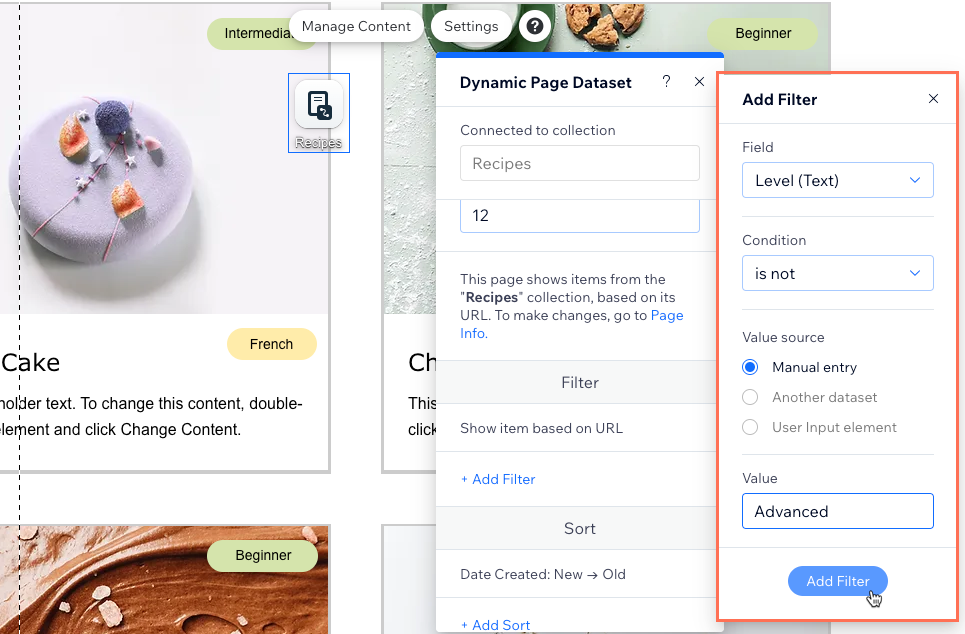
Learn how to add filters to your dataset to include or exclude items.
Combine filters for precision
You may need more than one filter to get really specific. Imagine you're curating a list of recipes, and you want to showcase French recipes that are not too difficult to complete. You could add a filter that includes only French recipes, and another that excludes advanced recipes. Only items that match the criteria of both filters will display in the dataset's connected repeater, gallery, or other elements.
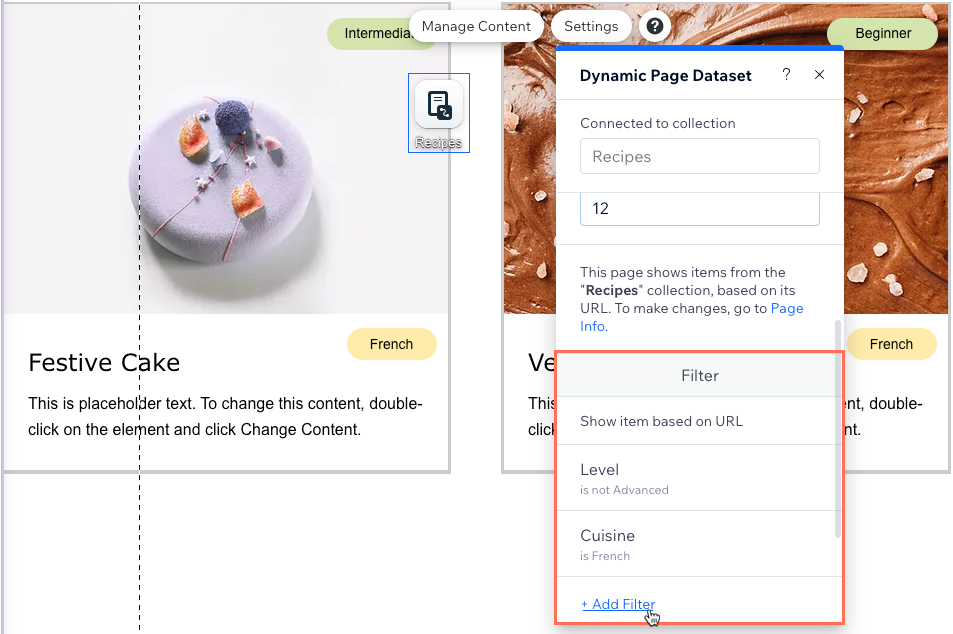
Learn more about using datasets to control your live site content.
Sorting to reorder items
Sorting helps you put your collection items in a specific, logical order. It's like arranging your books on a shelf in alphabetical or date order. Here's how sorting in your dataset settings works:
Choose which field to sort: Start by picking which collection field you want to sort your items by. This field determines the basis for arranging your items. It could be something like the name of a recipe or the date it was created.
Decide the order: Decide on the order in which you want your items to appear. The field type you sort by determines the available sorting options. You can sort alphabetically, numerically, oldest to newest, true fields first, and vice versa for each option.
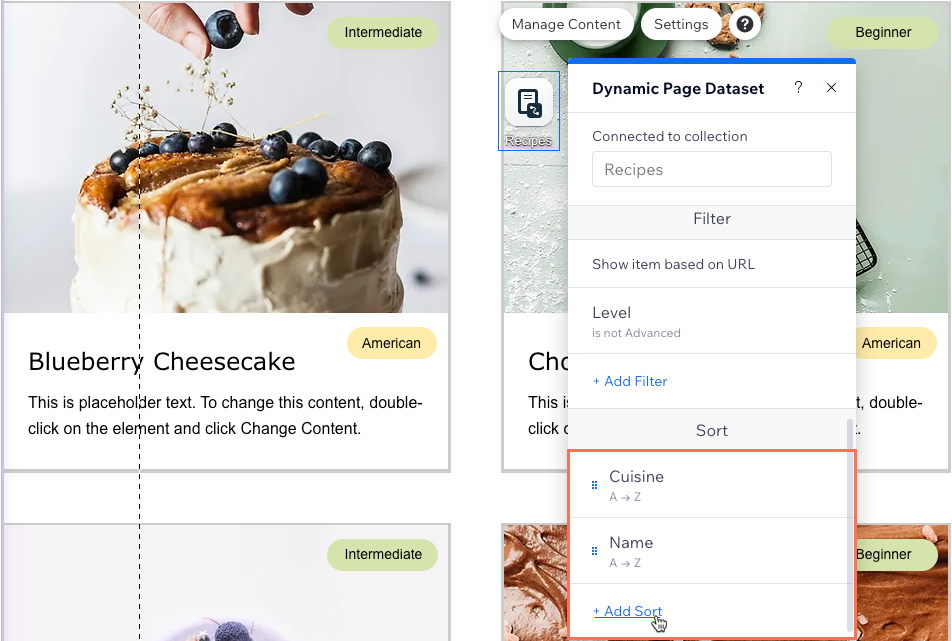
Notes:
Sorts also determine the order in which items load for navigational buttons connected to the dataset. Learn about the dataset click actions you can assign to buttons and images.
Dataset sorts override the order in any collections in which you've enabled the 'Mirror on Site' feature. However, dataset sorts do not affect the order in which items appear in your collection views.
Learn how to add sort conditions to datasets to control the order in which items display.
Sorting by multiple conditions
You can add multiple sort conditions for more advanced organization. With multiple sorts, the first condition is sorted first, followed by the second condition, and so on. This helps when you have multiple items that match your first sort condition and you want to further customize their order.
For example, you may want to sort recipes by cuisine, then add another sort to keep them listed alphabetically by name within each cuisine group. To do so, add a sort for the cuisine field and a second sort for the recipe name. You can also add a collection field exclusively for sorting to create a custom order.
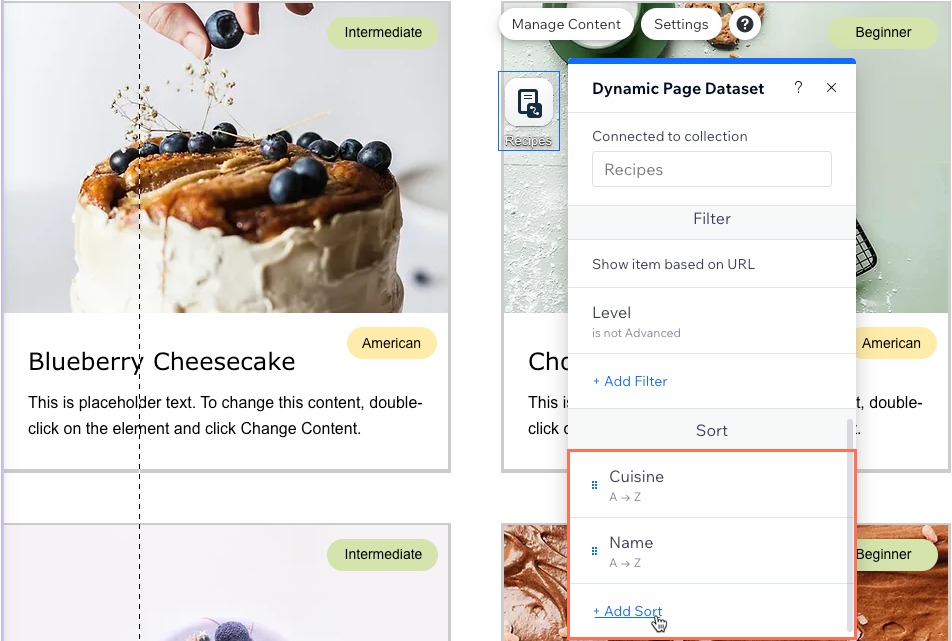
Learn how to add fields to your CMS collection.
Sorting by a random order
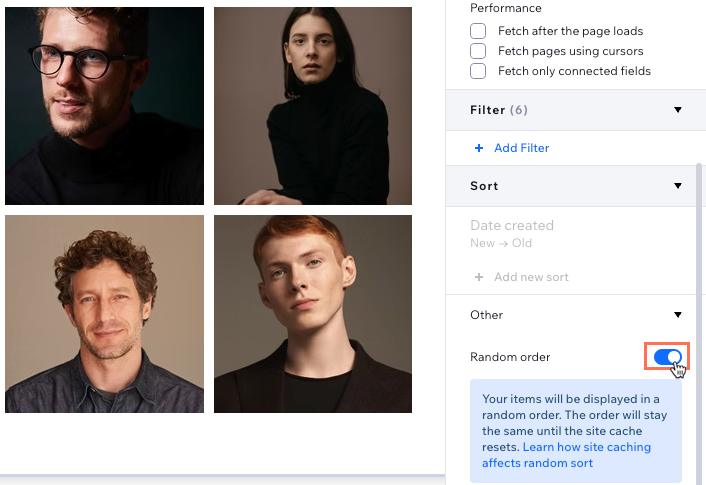
You can use the Random order toggle in your dataset settings to shuffle the order that collection items appear on your site’s connected elements. This feature is helpful when you want each visitor to see a fresh or unpredictable arrangement of items, such as for featured products, testimonials, or galleries where variety increases engagement.
How the random order is applied depends on your page's caching settings:
If page caching is enabled: All visitors see the same randomized order until your collection data updates or the cache is refreshed. For example, if you launch a sale and want everyone to see a consistent set of randomly ordered products, caching ensures the order doesn’t change for each visitor.
If page caching is disabled: The order shuffles every time the page loads, so each visitor—or every page refresh—shows a different, unpredictable arrangement of items.
Enabling 'Random order' disables all other sorts and turns off pagination or navigation features. To go back to a regular sort order or re-enable pagination, simply disable the toggle.
FAQs
Click below for answers to common questions about filtering and sorting live site content.
Can I hide items in my collection to prevent them from appearing on the page?
Yes. In your collection settings, you can toggle on Control publishing status. This adds a new field in your collection where you can set individual items as 'Draft'. These items do not get read by the dataset, so they cannot appear on your live site. With this feature, you can also set schedules that automatically change items between 'Published' and 'Draft' at specific dates and times.
Learn more about controlling the publishing status of items in your collection.
Keep in mind that hiding, showing, or reordering fields in your collection view does not affect whether they can be connected to your page elements.
Does filtering or sorting datasets affect my collection?
No. Filters and sorts added to your dataset only affect the content displayed and arranged on your live site's connected elements. Your collection itself stays unchanged. Learn how to manage your collection content.
Does the dataset mode matter when filtering or sorting?
Yes. The dataset mode determines whether the dataset can read your collection content, write to your collection, or both. Your dataset needs to be in 'Read' or 'Read & Write' mode to read your collection items and apply filters or sort conditions.
If your dataset is set to 'Write' mode, it is meant to be used to connect user input elements to your collection for capturing visitor submissions. 'Write' mode datasets cannot read your collection content, so they cannot display the content or apply filters or sorts.
Learn more about dataset modes.
Can I filter by a reference field or another dataset?
In a regular dataset, you can filter by a reference field, only if the referenced collection is connected to another dataset on the same page. With dynamic page datasets, you cannot filter by a reference field.
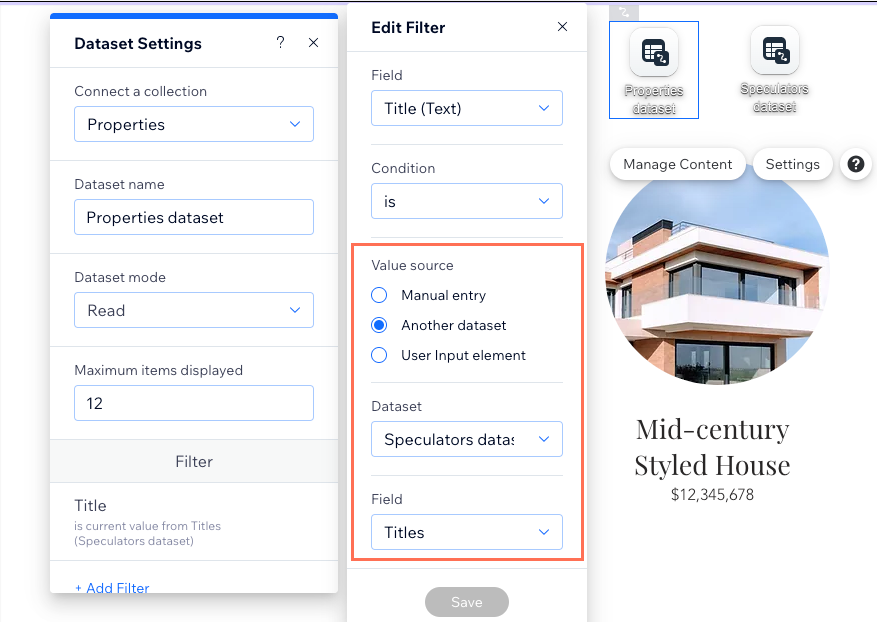
You can also filter by a field used in another collection. To do so, choose Another dataset under Value source. Then choose another dataset that connects to the collection that has the field you want to filter and select the relevant field.
Can I control the order in which the items display on my live site from my collection?
Yes. You can enable the 'Mirror on Site' feature to apply the order of your collection view to connected site elements. Keep in mind:
Any sorts added to datasets override the order set in the mirrored collection view.
You cannot add a filter to a collection view if the view has 'Mirror on Site' enabled. Likewise, you cannot mirror the collection view’s order if the view contains a filter.
How can I sort my items in a more logical way when using a mixture of letters and numbers in a 'Text' field type?
When you're using a 'Text' field type that contains both letters and numbers, the system applies an alphabetic sorting order. This means that 'Text' field values are sorted in an alphabetic sequence. For example:
P101
P120
P1200
P123
While this is an expected behavior for an alphabetic sorting logic, you might prefer to sort these values in a numerical sequence.
To achieve this, you can use a 'Number' field type without any letters. By using a 'Number' field type, the system will sort the same set of numbers as follows:
101
120
123
1200
This order aligns with a numerical sequence, offering a more intuitive understanding of your sorted data.
Learn how to:
Add sorts to a dataset to control the order of items on your live site.
Add sorts to your collection view to control the order of items in your collection.
What happens if no collection items match my dataset filter criteria?
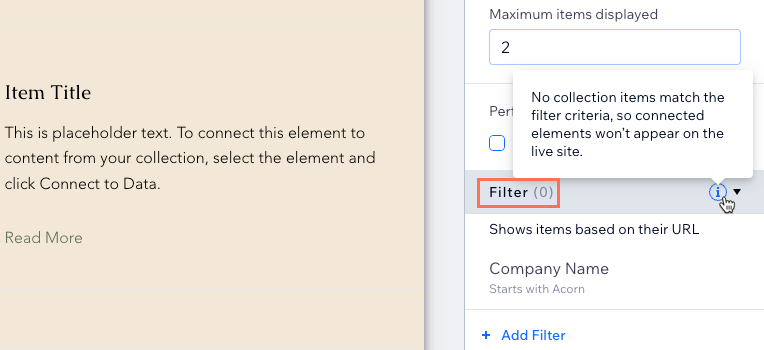
If you add a filter to the dataset that returns no matching results from your collection, then the connected elements will not appear on the live site.
After applying a dataset filter, the total number of items that can appear on the page displays next to Filter in the dataset settings. A zero appears if no items match the filter criteria.
What does enabling the 'Random order' toggle do?
When you turn on the Random order toggle, your collection items are displayed in a randomized order within connected site elements like repeaters or galleries. The exact way the order is generated depends on your page's caching settings:
If site caching is enabled: The randomized order is created when your site page is first cached. All visitors see the same random order until your collection content changes or the cache is refreshed. The order only updates after you update your collection (such as adding or removing an item) or when the cache is cleared.
For example: If you’re running a featured products gallery, every visitor sees the same shuffled product lineup until you add new products or update your collection.
If site caching is disabled: A new random order is generated each time someone visits or reloads the page. Every visitor may see a different item order on every visit or refresh.
For example: A testimonial section will display customer quotes in a fresh, randomized order every time a visitor lands on the page or reloads it.
Learn how to turn on or off caching for your site pages.
Why don't I see the 'Random order' toggle in my dataset?
The Random order toggle does not appear for the following:
Dynamic datasets that are the default dataset of your dynamic pages.
External collections (Wix app collections)
App pages (for example, Stores product pages)
Datasets set to appear on all pages (Wix Editor only)
For example, if you add a regular dataset to a dynamic page, you can use random order sorting for that dataset—but random order is not available for dynamic datasets. If you add a regular dataset to an app page, random order is not available.
This article is credited to the Wix team - https://support.wix.com/ and we thank them for that!