Each page on your site has its own unique URL. If you change a page's URL, Wix creates an automatic 301 redirect, taking visitors and search engines from the old URL to the new one. This helps prevent visitors and search engines from getting a 404 error if they go to an older broken link.
Important:
You must first upgrade your site and connect a domain to your site for the redirects to be created.
Customize the URL of your pages from their page settings in your editor.
To change your page URL:
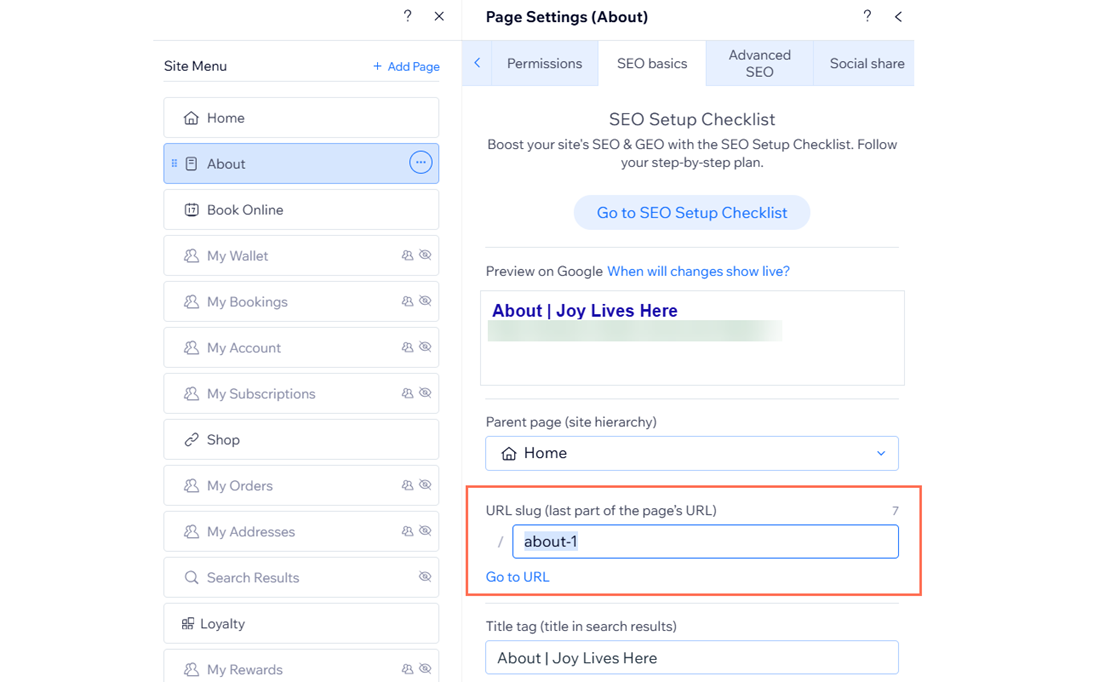
Wix Editor
Click Pages & Menu

on the left side of the editor.
Click the More Actions icon

next to the relevant page.
Click SEO basics.
Enter the page URL under URL slug (last part of the page's URL).
Press Enter on your keyboard.
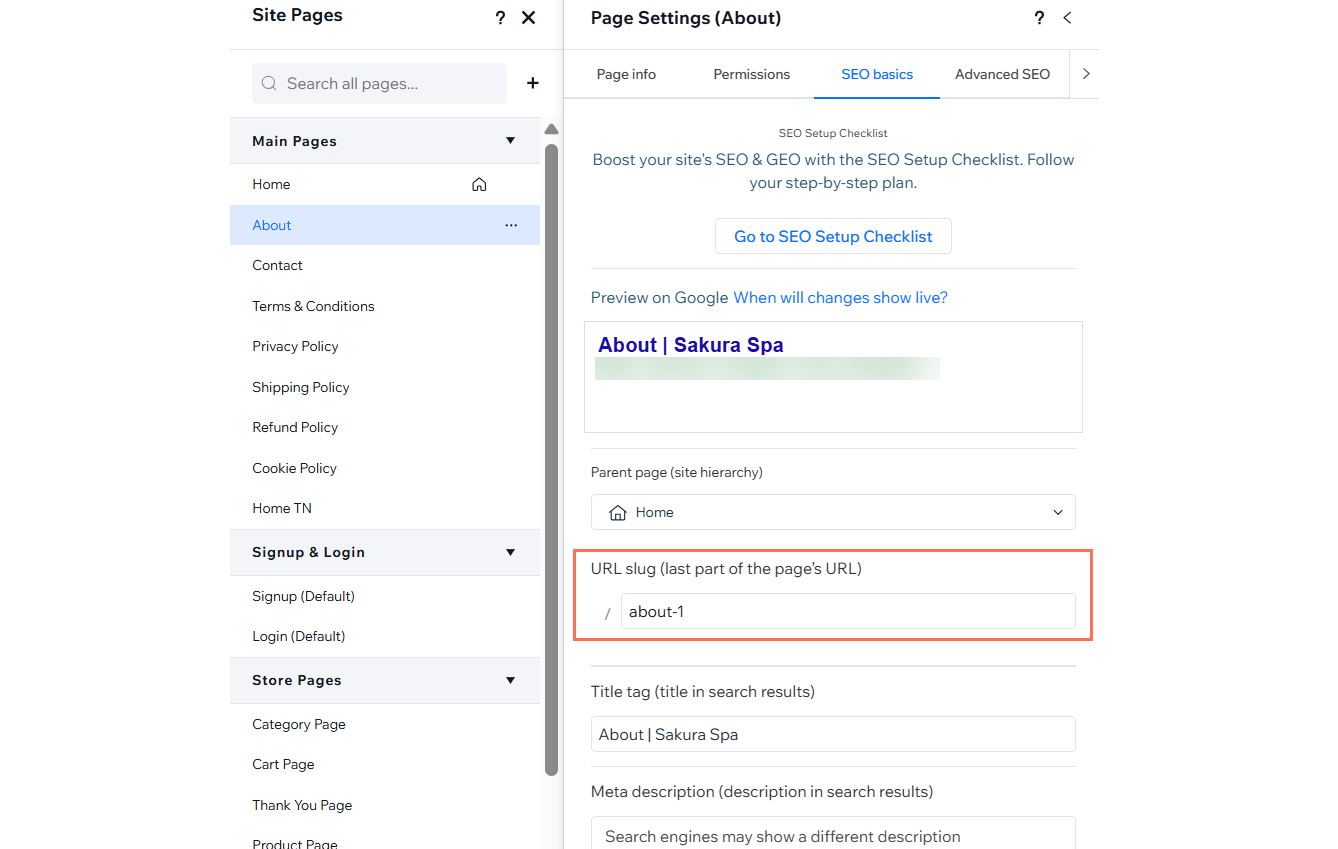
Studio Editor
Click Pages

on the left side of the editor.
Click the More Actions icon

next to the relevant page.
Click SEO Basics.
Enter the page URL under URL slug (last part of the page's URL).
Press Enter on your keyboard.
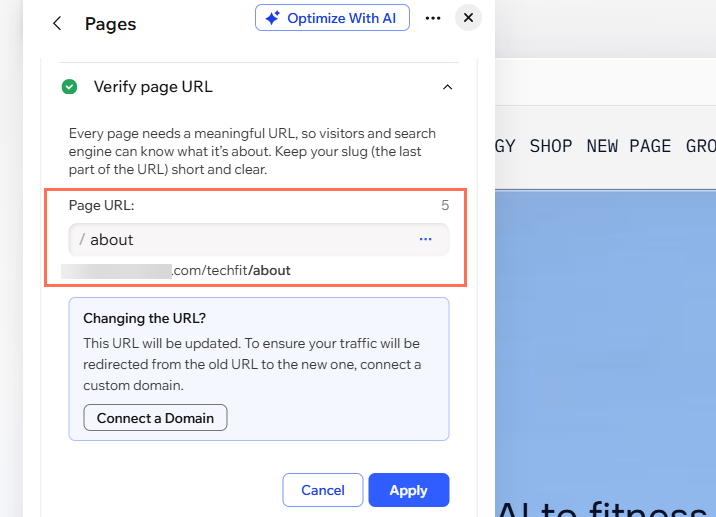
Wix Harmony Editor
Click the Page dropdown at the top left of the page.
Click the More Actions icon

next to the relevant page.
Hover over SEO and accessibility and click SEO.
Click Verify page URL.
Click Edit.
Enter a URL under Page URL.
Click Apply.
Tip:
Use words related to the page's content to increase the chances of that page showing up in relevant search results.
URL paths to avoid
When you change your site page URL, you should keep URL paths in mind. It's not possible to use certain URL paths for your pages, as they're used by Wix apps or reserved for SEO.
Some examples of URL paths you should avoid for your pages are:
apps
_api
robots.txt
sitemap.xml
feed.xml
sites
events (when using the Wix Events app)
event-details (when using the Wix Events app)
If you try to use these URL paths, you'll see an error that the URL's unavailable.
FAQs
Click a question below to learn more.
How can I ensure that my page URL updates correctly after I change it?
When you change a page URL, ensure you save and publish your site for the changes to reflect. If the updated URL is still not showing or results in a 404 error, check for any existing cached versions of your site in your browser. Clear your browser cache or try accessing the page in an incognito window to confirm the changes.
What should I do if my URL changes are not reflecting in Google search results?
Google may take a few days or weeks to update its index after you change a page URL. To expedite this, submit your updated sitemap in Google Search Console.
This article is credited to the Wix team - https://support.wix.com/ and we thank them for that!