Speak to your contacts at any time by making outgoing calls directly from the Wix app. Choose to return calls from inbox conversations or your call logs, or select a contact from your contact list.
Tip:
Learn how to manage your Business Phone Number settings in the Wix app.
To make outgoing calls:
Go to your site in the Wix app.
Choose how you'd like to locate a contact to call:
From your contact list
Tap Manage

at the bottom.
Tap Customers & Leads and select Contacts.
Tap the More Actions icon

to the right of the contact you'd like to call.
Tap Call.
Tip: Your Contact List includes anyone who has interacted with your business (e.g. wrote you an email or booked a session). You can add contacts to make them instantly contactable.
From a conversation
Tap Inbox

at the bottom.
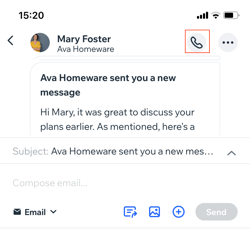
Tap on the relevant message.
Tap the Call icon

at the top of the screen.
From your call log screen
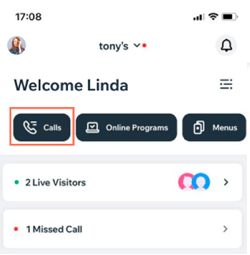
Tap Calls on your home screen.
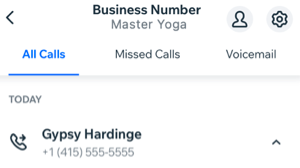
Tap the relevant tab to view your call logs: All Calls, Missed Calls or Voicemail.
Tap any call to call the contact again.
Notes:
To make an outbound call to a number not saved as a contact, tap Calls on your home screen and then tap the Keypad icon

.
You can play voicemails directly from a conversation or your call log screen.
Your agents can make outgoing calls as soon as they've accepted their agent invitations. An agent must log into the Wix app using the phone number this invitation was sent to.
This article is credited to the Wix team - https://support.wix.com/ and we thank them for that!