Meta tags are pieces of HTML code that contain page information that web browsers and search engines can read. Wix adds some standard meta tags, like your site's name, to your site by default.
You can also add additional meta tags to your site to give search engines extra information about your pages. For example, Google can use additional meta tags to create rich results for your site in search results.
Adding an additional meta tag
Add additional meta tags in your editor to improve your site's search engine optimization.
Wix Editor
Click Pages & Menu

on the left side of the editor.
Click the More Actions icon

next to the relevant page.
Click SEO basics.
Click the Advanced SEO tab.
Click Additional Tags.
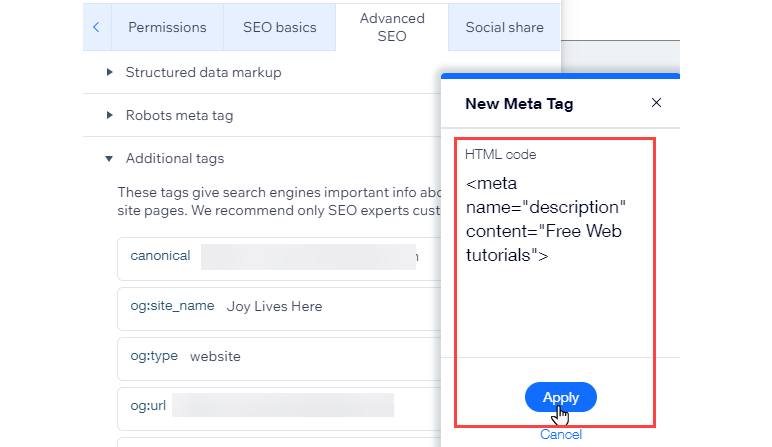
Click + Add New Tag.
Add your meta tag code in the HTML Code field.
Click Apply.
Studio Editor
Click Pages

on the left side of the editor.
Click the More Actions icon

next to the relevant page.
Click SEO Basics.
Click the Advanced SEO tab.
Click Additional Tags.
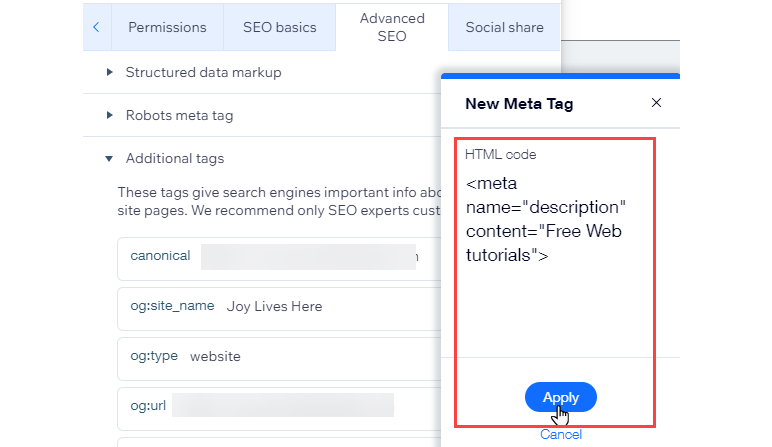
Click + Add New Tag.
Add your meta tag code in the HTML Code field.
Click Apply.
Tip:
You can also add meta tags to your site's SEO Settings.
Editing, hiding, or deleting a meta tag
Update your site's meta tags to make it easier for search engines and web browsers to read.
Wix Editor
Click Pages & Menu
on the left side of the editor.
Click the More Actions icon
next to the relevant page.
Click SEO basics.
Click the Advanced SEO tab.
Click Additional Tags.
Click the More Actions icon

next to the relevant meta tag.
Choose what you want to do:
Edit: Update or change a meta tag
Hide: Hide a meta tag from search engines (default meta tags only)
Delete: Delete a meta tag (additional meta tags only)

Studio Editor
Click Pages
on the left side of the editor.
Click the More Actions icon
next to the relevant page.
Click SEO Basics.
Click the Advanced SEO tab.
Click Additional Tags.
Click the More Actions icon
next to the relevant meta tag.
Choose what you want to do:
Edit: Update or change a meta tag
Hide: Hide a meta tag from search engines (default meta tags only)
Delete: Delete a meta tag (additional meta tags only)

FAQs
Click a question below to learn more about additional meta tags:
How many additional meta tags can I add to my site?
You can add up to 10 tags, but you can't add a meta tag that Wix already created for you.
What tag types can I add?
You can only use the following tag types:
<meta>
<link>
If you want to add an additional tag that is not supported, you can use the Custom Code section.
Can I add AI crawler directives or site verification tags?
Yes, AI crawler directives and site verification tags use supported tag types, so you can add them using the steps above.
AI crawler directives use the <meta> tag (e.g. <meta name="robots" content="noai, noimageai">).
Site verification tags, such as Bing's, also use the <meta> tag. For example, <meta name="msvalidate.01" content="YOUR_CODE">.
Tip: To control which pages search engines can crawl across your entire site, you can also edit your site's robots.txt file.
Why can't I see an option to delete certain meta tags?
It's not possible to delete the default meta tags that Wix adds to your site. You can only delete additional meta tags.
Want to learn more about optimizing your site for search engines?
Read our blog post about using the advanced SEO features Wix offers.
This article is credited to the Wix team - https://support.wix.com/ and we thank them for that!